
Who it’s for: any business that wants to turn website visitors or WhatsApp contacts into sales opportunities without depending on someone being online at that exact moment. This page’s example is a real-estate agency, Aymar Agents’s initial market, but the mechanism is the same for any industry.
What the end customer sees
Section titled “What the end customer sees”A visitor opens your website widget (or writes to your WhatsApp) and talks with your assistant. The widget header always shows the subtitle “AI assistant · replies instantly”, and every message the AI generates carries the “AI” label next to the assistant’s name — the notice that they’re talking to an artificial intelligence (AI Act, Art. 50) is mandatory, cannot be turned off, and appears on every channel and language. If the visitor asks directly “are you a person?”, the assistant confirms plainly.
The assistant answers with information from your own catalog (available units, prices, terms…), offers real visit slots and books them on its own, and knows when to hand the conversation over to you — all in the same thread, without the visitor having to repeat anything.
Steps in the product
Section titled “Steps in the product”-
Connect your first channel. Your account already comes with a web widget; copy its snippet from Channels → Web widget and paste it into your page. For WhatsApp, press Connect on its card — it’s a flow hosted by Meta, you leave the Platform and come back already linked. See Channels.
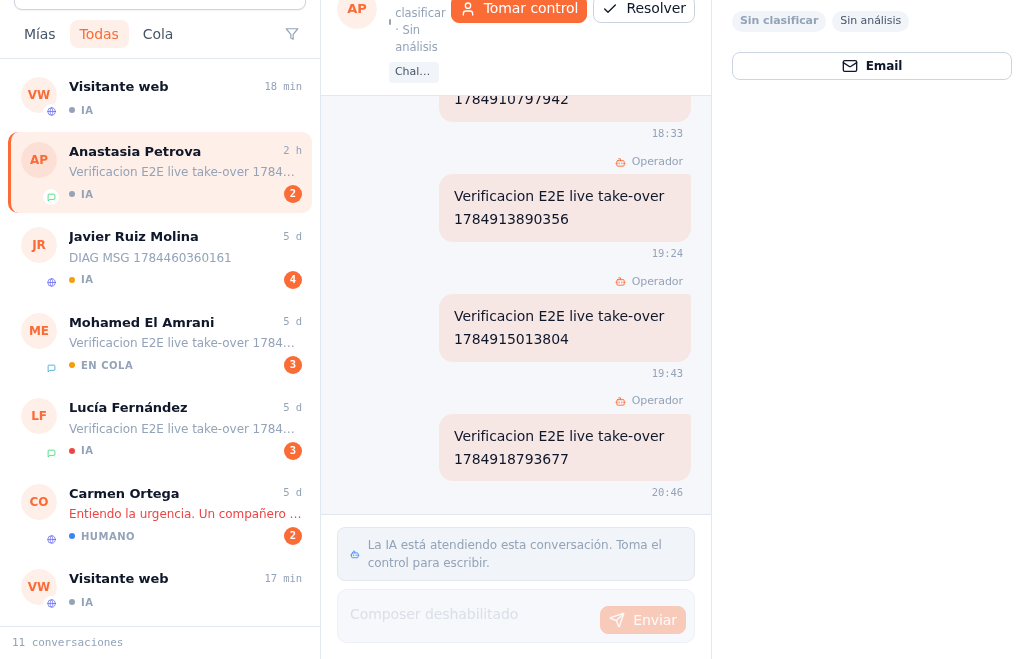
While the AI runs the conversation, the composer stays disabled for your team — take over only if you actually need to step in. -
Assign the agent that will handle that instance. In the channel’s card, pick the agent from the Assigned agent dropdown — you can use a different one per channel or instance (a more sales-driven tone on WhatsApp, for example). See AI agents.
-
Load your knowledge base. Upload your documents (terms, FAQs, brochures) in Knowledge base; the agent only uses what you gave it, it never invents information about your business. See Knowledge and documents.
-
Connect your real catalog through an MCP server, and tag it. If your catalog (the units for sale or rent, in the real-estate example) lives in an external system, connect it as an MCP server from Settings → MCP servers — pick a template from the tiered catalog (Tier A with an API key, Tier B with OAuth) or bring your own server. Give the MCP server a resource tag (for example “Sales”), and that same tag to the agent that should use it, in its own Resources section — the agent only sees the catalog if it shares a tag with it; with no tag in common, it doesn’t see it at all. See MCP servers and Resources and tags: what each agent sees.
-
Set your working hours. Under Settings → Business hours, turn each day of the week on or off, adjust the time window, and write the message anyone who writes outside those hours will see. These same hours feed the Calendar’s slot engine — the AI never offers an appointment outside your working hours. See Settings and integrations.
-
Set when the agent hands the conversation to a person. In the agent’s editor, Escalation rules section: add keywords (“talk to a person”), a threshold of unresolved turns, or turn on automatic escalation on an explicit customer request. See AI agents.
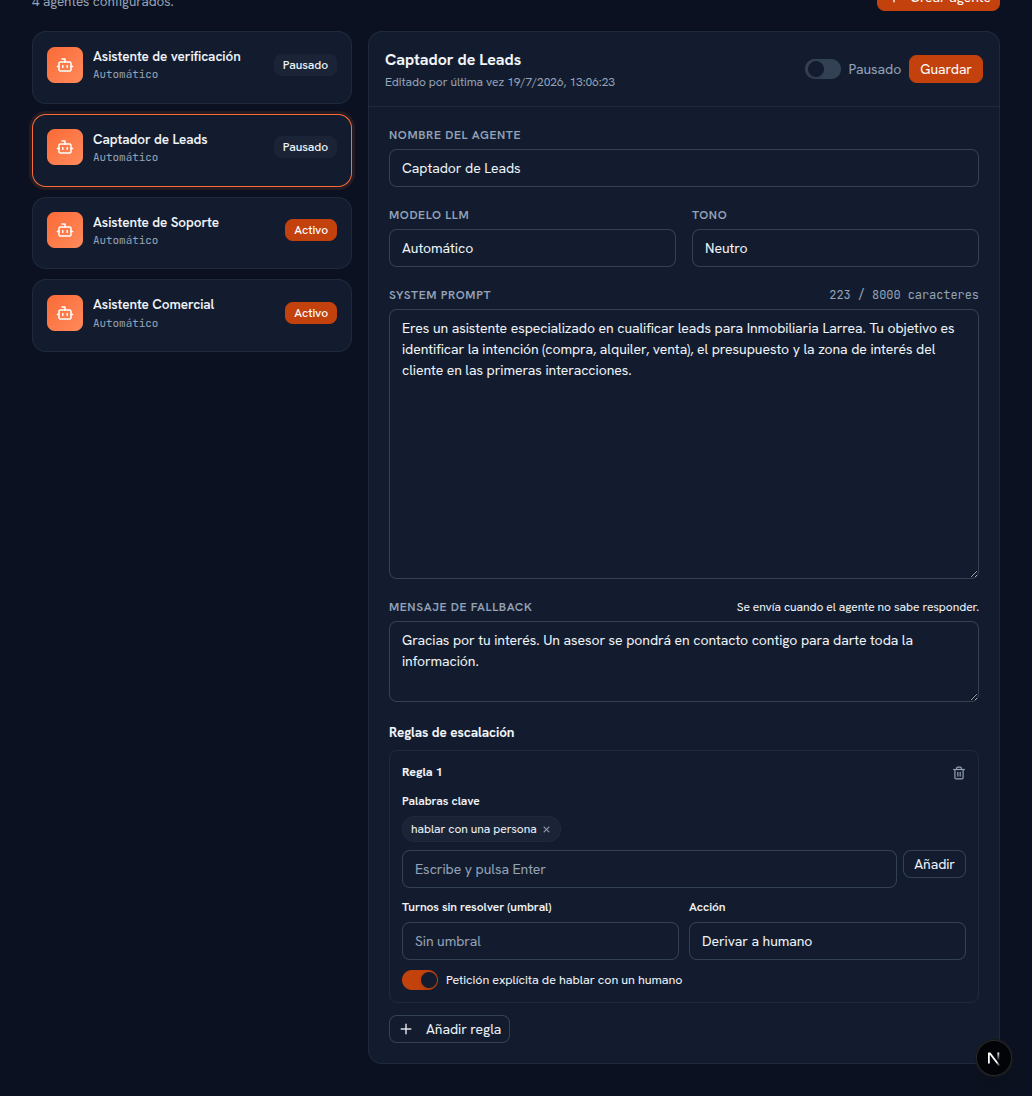
Each rule combines one or more conditions — keyword, unresolved turns, explicit request — with the action it triggers. -
The visitor talks, and the agent captures the lead on its own. As the conversation moves along, the assistant notes the detected type of interest (buying or renting, in the real-estate example), checks the real catalog connected in step 4 to answer with actual data, and the lead shows up in your funnel without anyone entering it by hand.
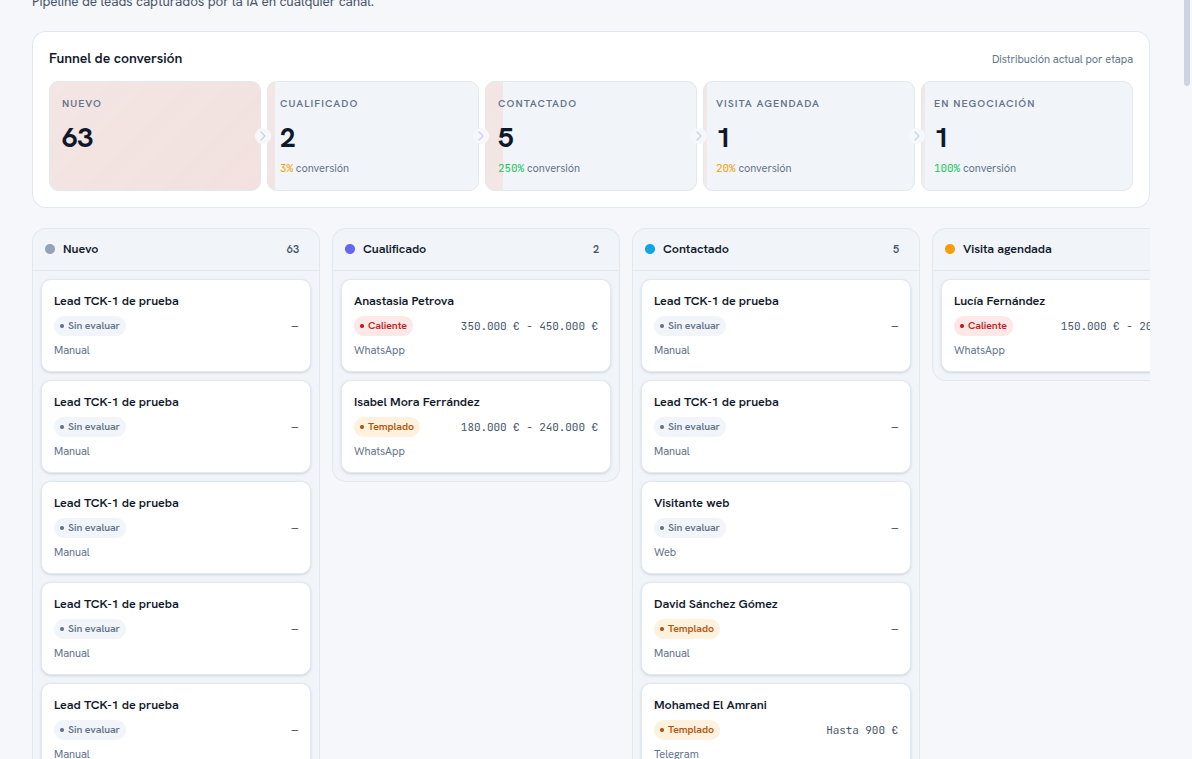
The lead the AI captured lands in the funnel's first stage, with its origin channel (WhatsApp, Telegram or Web) visible on the card. -
If the customer asks for an appointment, the AI books it on its own. The agent uses the exact same slot engine your team sees: it checks the working hours from step 5, the calendar’s own parameters, each employee’s personal availability and their Google Calendar if connected, and only offers slots that are genuinely free. If the customer confirms one, the appointment gets booked instantly, with origin AI and status Scheduled, with nobody on your team stepping in — the AI never reveals the rest of your calendar, it only negotiates free slots. See Appointments and calendar.
-
Review the lead’s record. Open it from the board to see interest, quality (Hot, Warm, Cold), origin channel, and the linked conversation. Add internal notes or assign an owner. See Leads.
-
If the lead arrived another way, add it by hand. A phone call, a portal, an in-person visit — a manually entered lead shares the exact same funnel and follow-up as ones the AI captures. See Leads.
-
Follow the lead through to close. Move its stage, create an appointment or a ticket right from its own record, without leaving it.
What to configure
Section titled “What to configure”- Channel: at least one web widget or WhatsApp number connected.
- Agent: assigned to that instance, with instructions and tone adjusted.
- Knowledge base: the documents the agent uses to answer and qualify.
- Catalog through MCP (optional but recommended if your inventory lives outside Aymar Agents): the connected, tagged server, with the same tag on the agent that should see it.
- Working hours: feed the widget’s after-hours notice and the Calendar’s slot engine.
- Escalation rules: at least one, so the AI knows when to hand you the conversation.
- Funnel stages: customizable from the Leads screen, so they match your own sales process.
Limits and honesty
Section titled “Limits and honesty”- The agent never invents facts about your business: it only uses what you uploaded to the knowledge base, or what it sees through the MCP catalog you gave it access to.
- With no tag in common between the agent and the MCP server, the agent doesn’t see that catalog at all — there’s no “by default” access to everything connected on your account.
- The AI never reveals the full content of your calendar while negotiating an appointment — it doesn’t say what other appointments exist or with whom, it only offers genuinely free slots.
- Telegram and Messenger/Instagram Direct work with the same capture mechanism; Phone voice is still in development and can’t be turned on yet.
- Outside the working hours you configure, the widget shows the closed notice you set — the AI keeps answering 24/7, the schedule only changes the message and which appointment slots get offered, not the agent’s availability to talk.
See also
Section titled “See also”- Channels — connecting WhatsApp, Telegram and the web widget.
- MCP servers — the tiered catalog and how to connect yours.
- Leads — the board, the record, and manual entry.
- Appointments and calendar — the full slot engine, with and without AI.
- Knowledge and documents — what the agent uses to answer.
- Customer support with a knowledge base — the next step, when a conversation needs to move to a person.