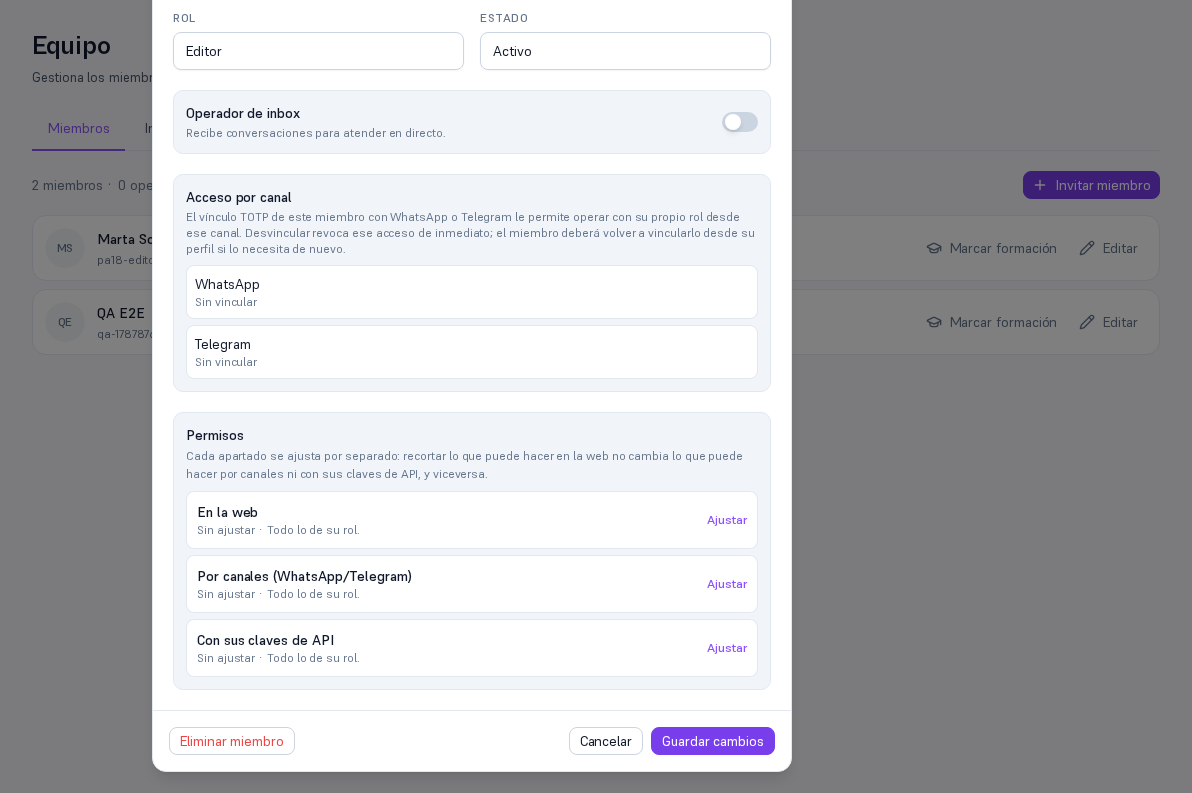
A member’s role (admin/editor/viewer) already sets a starting set of permissions (Manual 15, section 4; Manual 25). This section adds a finer, per-person adjustment: you can narrow (never widen beyond their role) what a specific member can do, and do it separately depending on where they’re acting from — the Platform’s website, a channel (WhatsApp/Telegram), or their own API keys (Manual 50).
3.1 Before inviting: see what each role comes with
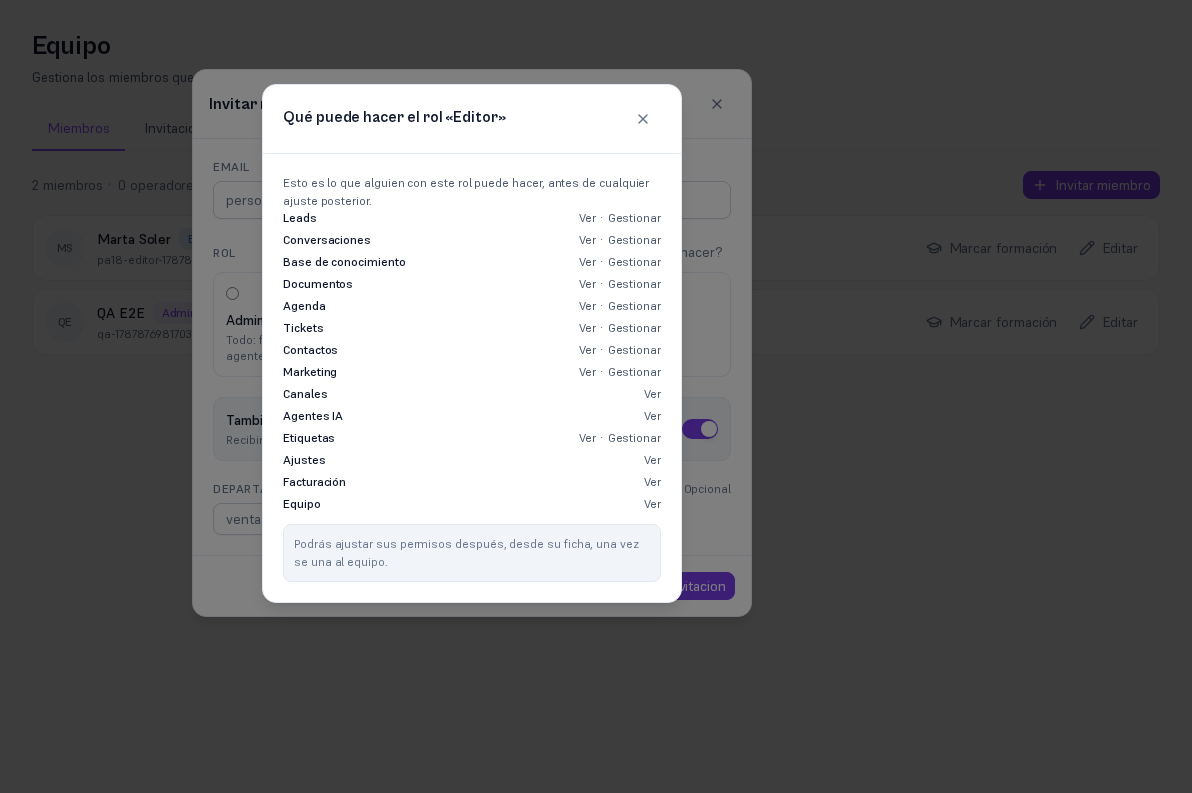
Section titled “3.1 Before inviting: see what each role comes with”When inviting someone new (Team → Invite member), next to the role selector there’s a “What can they do?” link that shows, area by area, what that role can do out of the box — useful for deciding which role to assign before the person is already on the team.
This popover is purely informational — it doesn’t narrow anything yet (the member doesn’t exist yet). The real narrowing is done from their record, once they’re already part of the team (section 3.2).
3.2 Narrowing an already-on-the-team member’s record
Section titled “3.2 Narrowing an already-on-the-team member’s record”Requirements: Admin role.
- Go into Team and tap “Edit” on the member in question (Manual 25).
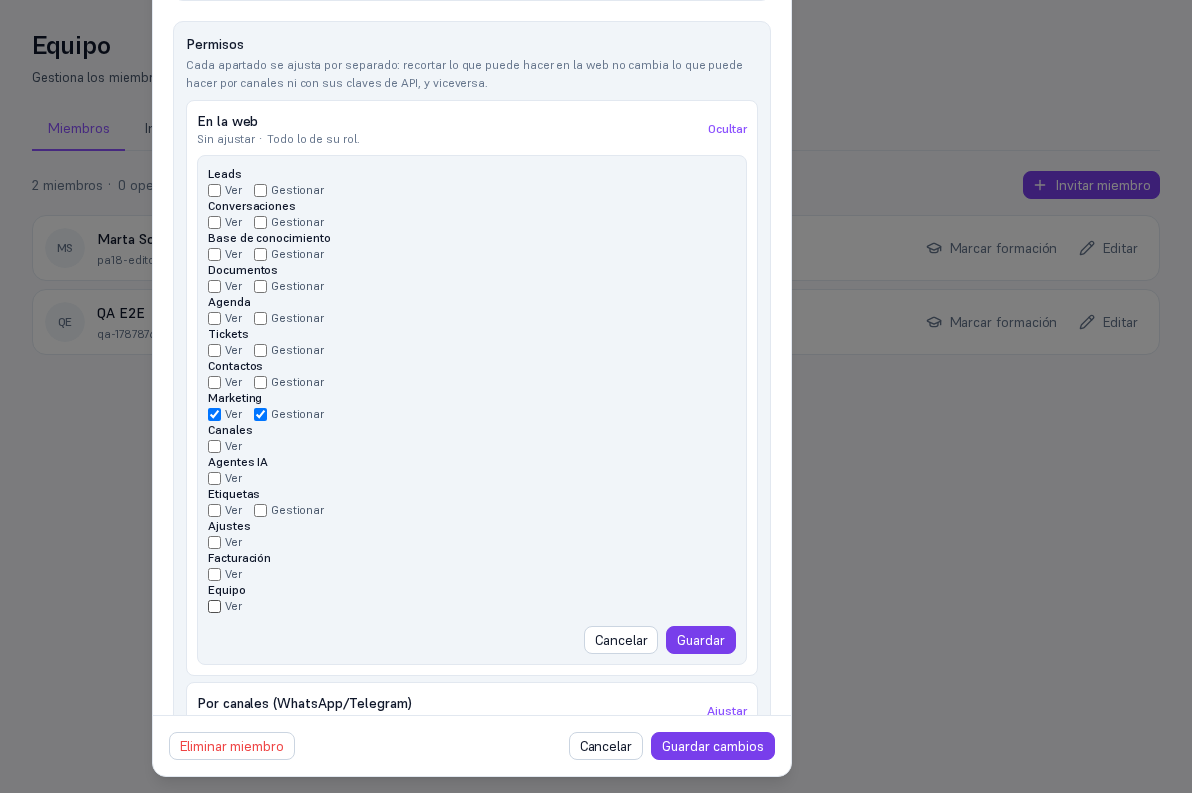
- Scroll down to the “Permissions” section, below “Channel-linked access”.
The three sections are independent dials: narrowing what a member can do on the web doesn’t change what they can do by channel or with their API keys, and vice versa. Choose the one that applies:
-
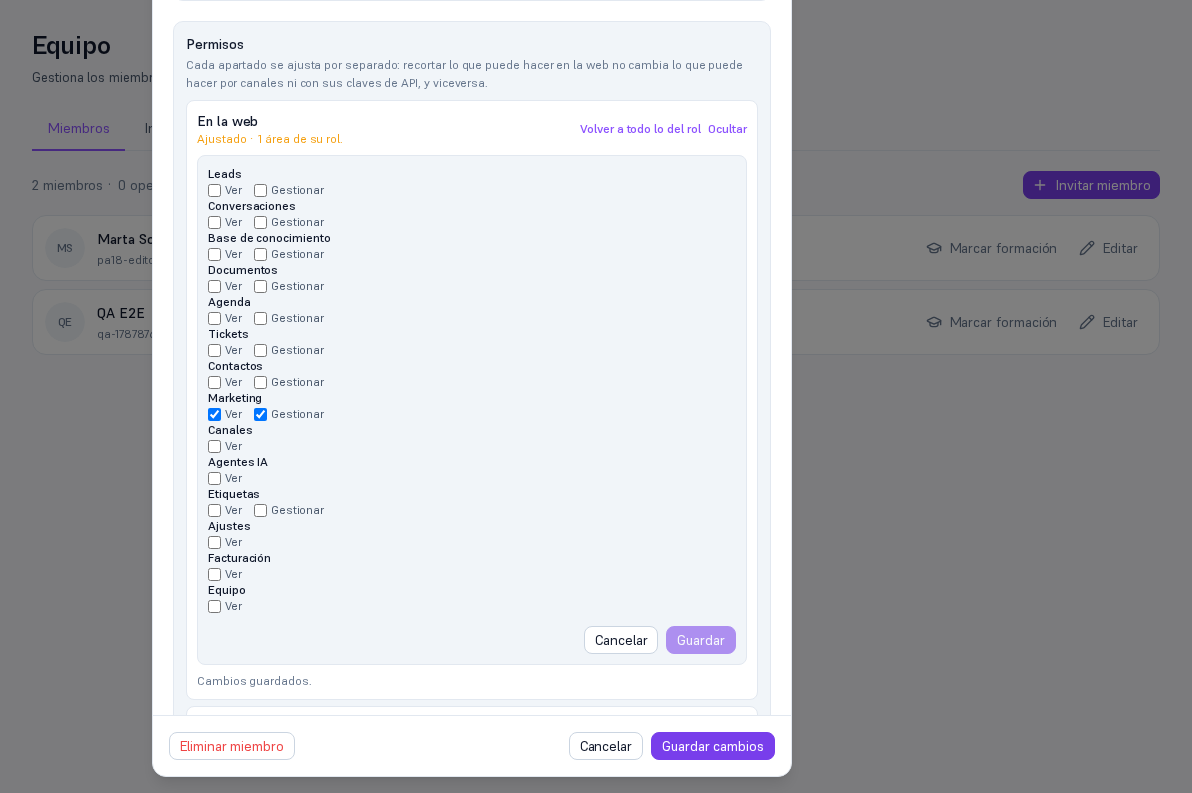
Tap “Adjust” on the section you want to narrow.
-
Uncheck the View/Manage boxes for the areas you don’t want that member to be able to touch from that specific section. Everything starts checked (everything their role has).
-
Tap “Save” (each section saves on its own — there’s no need to tap the record’s general “Save changes” for this narrowing to take effect).
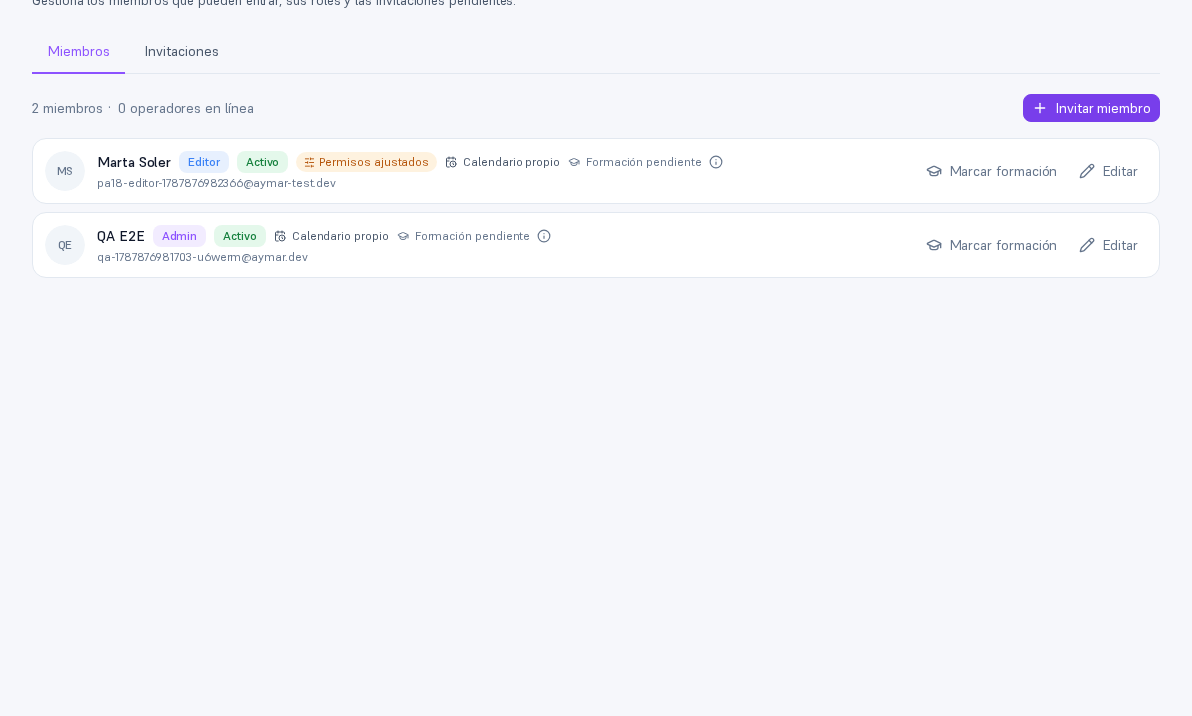
Result: the effect is real and immediate — the next time that member acts from that specific medium (the web, a channel, or one of their API keys), the server already checks the narrowing, not just their role. On the Team list, any member with at least one narrowed section shows the “Permissions adjusted” label.
Note — Going back to everything the role has
The “Revert to everything the role has” link on an already-adjusted section restores it instantly, with no confirmation asked — that member goes back to having, on that specific section, exactly the same as the rest of their colleagues with the same role.
Important — You can’t narrow yourself on the web
If you try to adjust your own “On the web” section, the Platform rejects it: it would leave you with no way to undo it from the interface itself. Ask another administrator to do it for you if it’s genuinely needed.