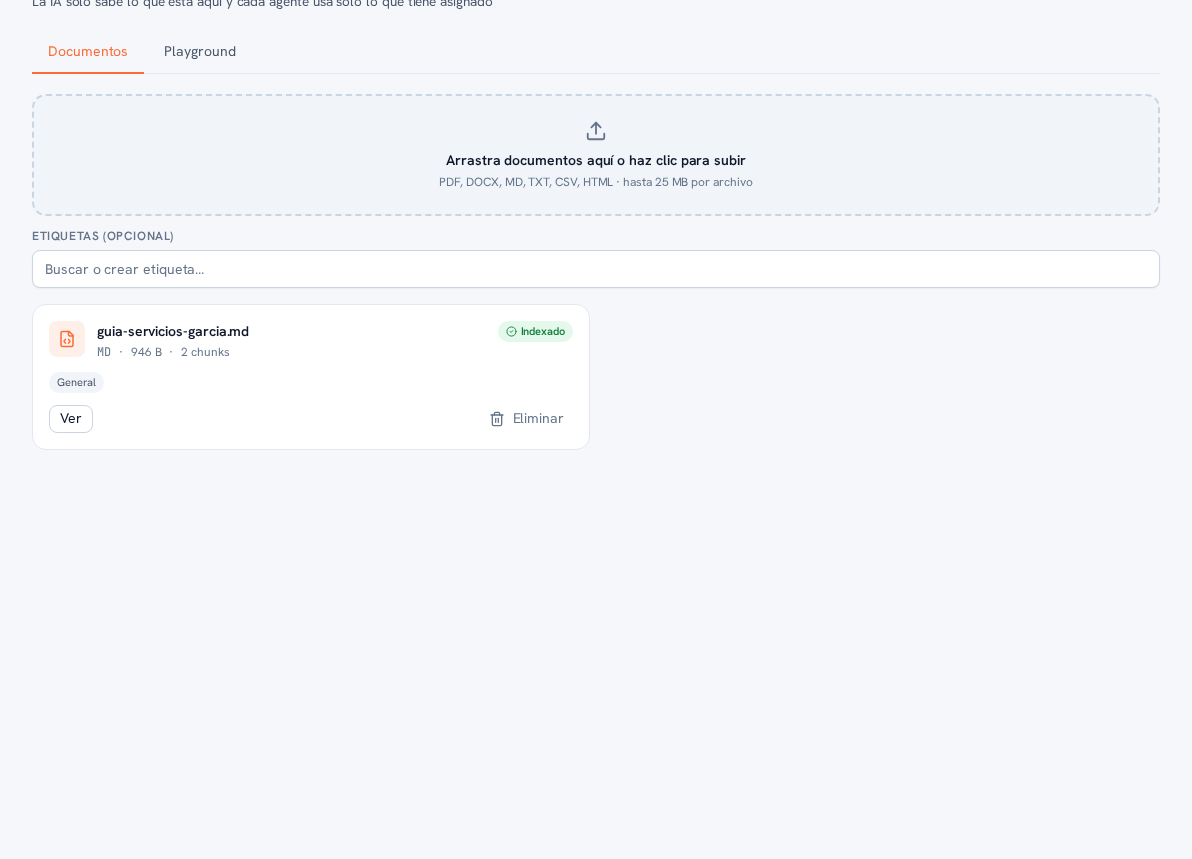
Requirements: administrator or editor role.
- Go into Knowledge base, in the sidebar.
- Make sure you’re on the Documents tab (it’s the one open by default; the other tab, Playground, is covered in section 4).
- Drag your files into the upload zone, or click it to choose them from your computer.
- Optionally, in the “Tags (optional)” field right below, search for or create one or more tags before uploading, to control which agents will be able to use this document (detail in section 3). If you don’t choose any, that’s fine: the platform automatically assigns the “General” tag.
Supported formats: PDF, DOCX, MD, TXT, CSV and HTML, up to 25 MB per file.
Result: the document is listed on this same screen and available for the AI to consult when replying to your customers.
Note — Before uploading your first document
While your knowledge base is empty, this same screen says so with the message “Your knowledge base is empty” and reminds you that you need to upload documents so the AI can answer with your business’s data.