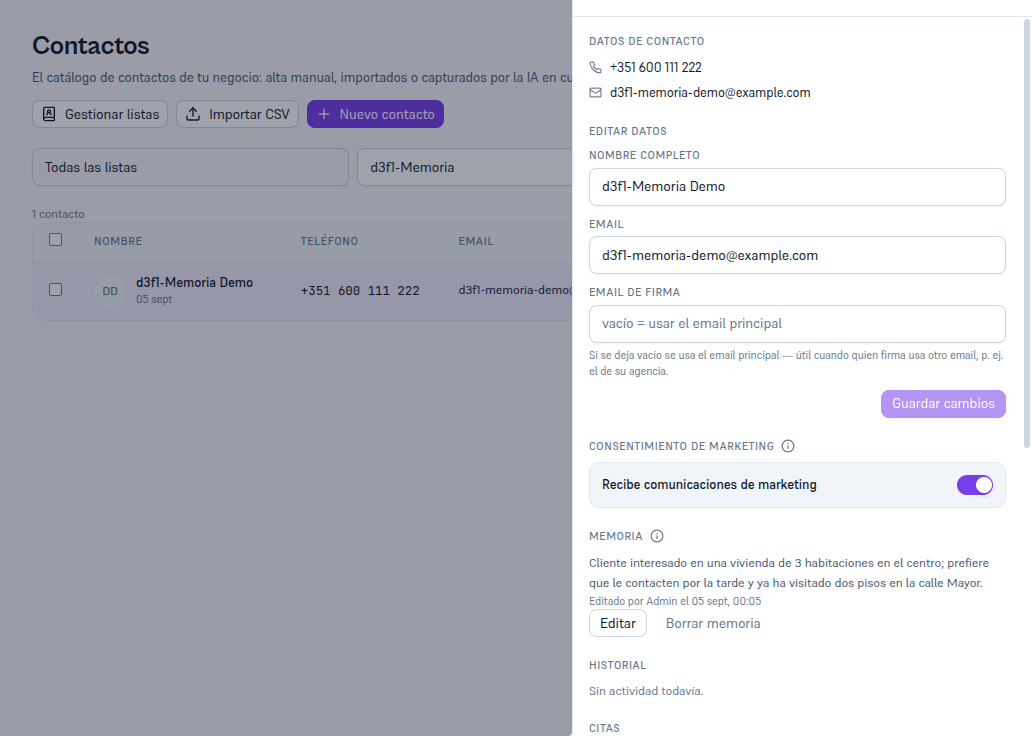
Tap View on any table row to open its record (drawer), with these sections:
4.1. Contact details and Edit details
Section titled “4.1. Contact details and Edit details”At the top of the record you see the contact’s phone and email (or “No email” if they don’t have one), and their source and sign-up date below their name. Below that, the Edit details section lets you change the full name and the email; tap Save changes to confirm. The phone isn’t edited from here.
4.2. Marketing consent
Section titled “4.2. Marketing consent”A “Receives marketing communications” toggle you can turn off or on by hand — the Platform asks you to confirm in both directions. It’s the same state you see as “Receives marketing” / “Unsubscribed” in the table’s Marketing column. See the automatic unsubscribe below (section 6).
4.3. Customer memory
Section titled “4.3. Customer memory”The assistant keeps a summary here of what it knows about this contact so it can give more useful answers in future conversations — it updates on its own after every conversation, and it’s the same summary no matter which channel they write to you on. As an operator you can read it, correct it or delete it at any time; it deletes itself after the time configured in Settings → Memory (Manual 26, section 9).
If the assistant hasn’t saved any summary yet, you’ll see the notice “The assistant hasn’t saved a summary of this contact yet” and a “Write memory” button to create one yourself. Once there’s a summary, you’ll see below who last updated it — “Automatically updated by the assistant on [date]” or “Edited by [name] on [date]” if an operator touched it — and the “Edit” and “Delete memory” buttons.
Requirements to edit or delete: Admin or Editor role — reading it is available to any role.
Procedure — deleting a customer’s memory:
- Tap “Delete memory” under the summary.
- Confirm in the “Delete memory?” box.
Result: the saved summary is deleted, not the contact or its conversation history. The assistant will start building a new summary from the next conversation.
Note — Deleting the memory isn’t the same as erasing the customer
“Delete memory” only removes the summary — the contact, their conversations, leads and tickets stay intact. For the full right to erasure (GDPR Art. 17), use the “Danger zone” at the bottom of this same record (section 4.6): that action DOES delete the memory along with everything else.
4.4. History
Section titled “4.4. History”Everything that has happened to this contact, sorted by date: conversations, leads, marketing campaigns received and tickets, each with a direct link to its conversation, lead or campaign (“View campaign”), and a “Load more” button to see further back in time.
4.5. Tickets
Section titled “4.5. Tickets”Internal cases open about this contact — for example “Call to confirm visit”. From here you can tap “New ticket” to open a new one already linked to this contact. These are your agency’s internal tickets about your customers, different from the Support tickets you open with your provider’s team (Manual 28 · Support). The global ticket list, its statuses, its filters, and the rest of the places a ticket can be created from are in Manual 20 · Tickets.
4.6. Danger zone: erasing the customer’s data (GDPR)
Section titled “4.6. Danger zone: erasing the customer’s data (GDPR)”At the bottom of the record, below the sections above, the “Danger zone” section really executes the GDPR right to erasure (Art. 17), not just hides the record: type the contact’s exact name in the confirmation field and tap “Erase customer data”.
Requirements: Admin role — it’s the record’s most sensitive action, reserved for administrators.
Result: their conversations and messages, attachments, generated documents and associated tickets are permanently deleted; their leads are anonymized (they keep the stage and the amount for your metrics, with no identifying data left); their record disappears from the Contacts list. It can’t be undone. The full procedure, with when to use it, is in Manual 35 · Training your team on the AI system, section 6.2.
Important — Verify before confirming
It’s irreversible. Only confirm it when the request is real and comes from the customer themselves (or their legal representative) — if in doubt, open a Support ticket first (Manual 28).