
Who this is for: teams that trust the agent to prepare an action, but want a person to confirm it before it actually runs — for example, before sending a sensitive message or touching an important piece of data.
What the end customer sees
Section titled “What the end customer sees”It depends on the specific action waiting for approval: if the step sends a message to the customer, they don’t receive it until someone on your team approves it — there’s no visible in-between state for them. If the step is purely internal (for example, looking up a piece of data), the customer sees nothing at any point.
Steps in the product
Section titled “Steps in the product”-
In a flow’s visual editor, add a step and mark it “requires approval”. Pick the Approval → “Request approval” piece from the palette, or switch the step’s Approval field from “by policy” to “requires approval” — this second path works on any step, not only one with the Approval piece itself. Also add the real action that must ask permission before it runs (a message to the customer, a row in a spreadsheet, a tool from an MCP server…). See Jobs and flows, the “Visual editor” section.
-
The flow fires — manually with “Run now”, or through its own trigger — and reaches that step. Instead of running the action directly, the task moves to “Waiting for approval” status and shows up in Jobs, with the Approve and Reject buttons already on the queue row itself.
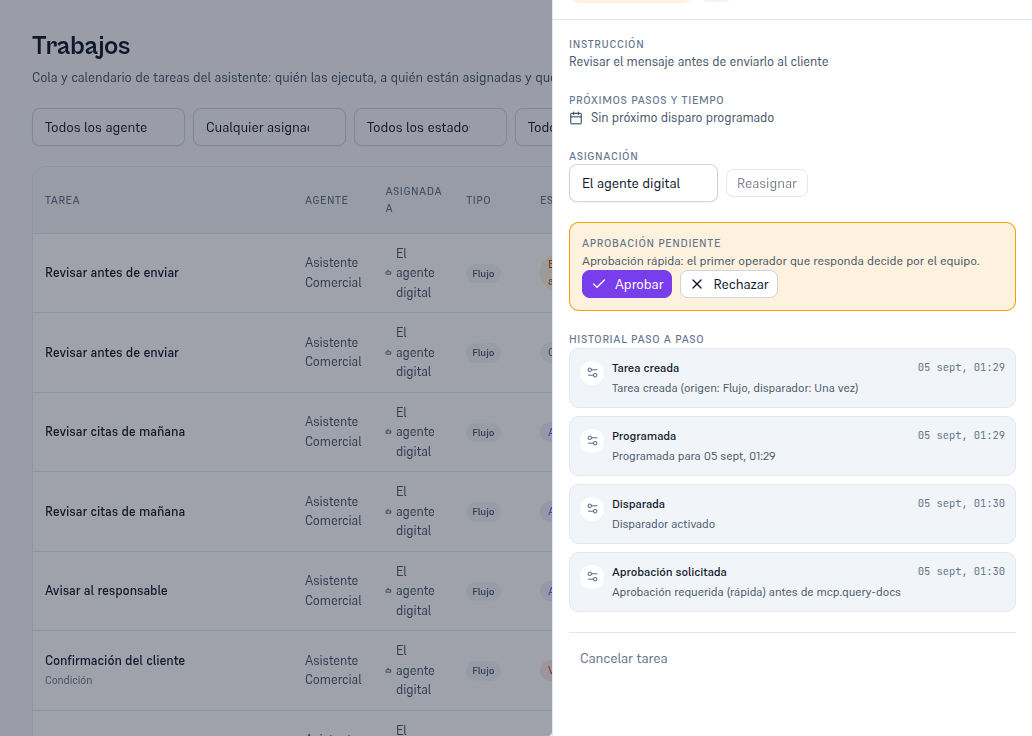
The Pending approval section explains the rule: the first operator to respond decides for the whole team — no need for several people to confirm the same thing. -
Any operator with access approves or rejects it — from the queue row itself, or by opening the task’s detail and tapping the same button there. It doesn’t have to be whoever created it or whoever it’s assigned to.
-
If approved, the action actually runs and the task moves to “Completed”. Its step-by-step history keeps everything that happened, in order: created, scheduled, triggered, approval requested, approval resolved (with who approved it), action executed and completed — you never have to just trust what the agent claims it did.
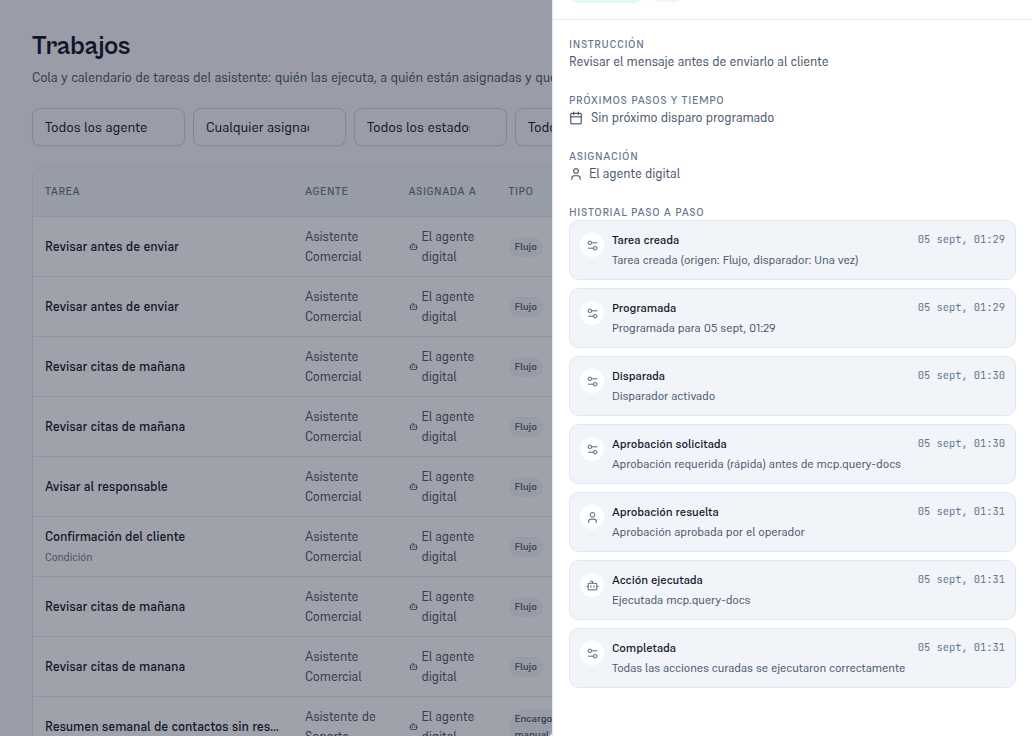
The full, unedited history — every step carries its own exact date and time. -
If rejected, the action doesn’t run and the task stays on record with that decision — the same step-by-step history notes who rejected it and when.
What to configure
Section titled “What to configure”- Approval per step: “by policy” (uses the rule for that action’s type — today, outbound-to-customer actions ask for approval by default and internal ones run on their own) or “requires approval”, which forces the pause on that specific step regardless of the general policy.
- A real action behind the step: approval gates a curated action (a message, a spreadsheet row, a tool from an MCP server…) — a step with no action attached has nothing to approve, so it simply waits for someone to complete it by hand instead.
Limits and honesty
Section titled “Limits and honesty”- “Quick approval” means the first operator to respond decides for the whole team — there isn’t (yet) a mode that requires several confirmations for the same step.
- A step with no curated action attached never reaches “Waiting for approval”: it stays “Active”, waiting for someone to complete it manually with closing notes — a different mechanism, covered in Digital employee: jobs and flows.
- Rejecting a task doesn’t retry it on its own: if needed, you have to create a new step or relaunch the flow from its own detail page.
See also
Section titled “See also”- Jobs and flows — the full “Follow-up after a visit” walkthrough, step by step.
- Digital employee: jobs and flows — the general jobs-and-flows case, including manual completion with no approval.