
Skip to content

Launch

Unlinking (the admin, from Team)

Requirements: Admin role.

An administrator can unlink the channel for any team member — for example, if that person leaves the company or loses their phone.

  1. Go into Team and tap “Edit” on the member in question (Manual 25).
  2. On the record, find the “Channel-linked access” section — it shows that member’s real WhatsApp and Telegram status (linked and to which partial identifier, or “Not linked”).
  3. If there’s a linked channel, tap “Unlink” on its row and confirm.

Result: that person’s access through that channel is revoked instantly. The member will have to link it again from their own Profile (sections 3-4) if they need it again — an admin can’t link on someone else’s behalf, only unlink.
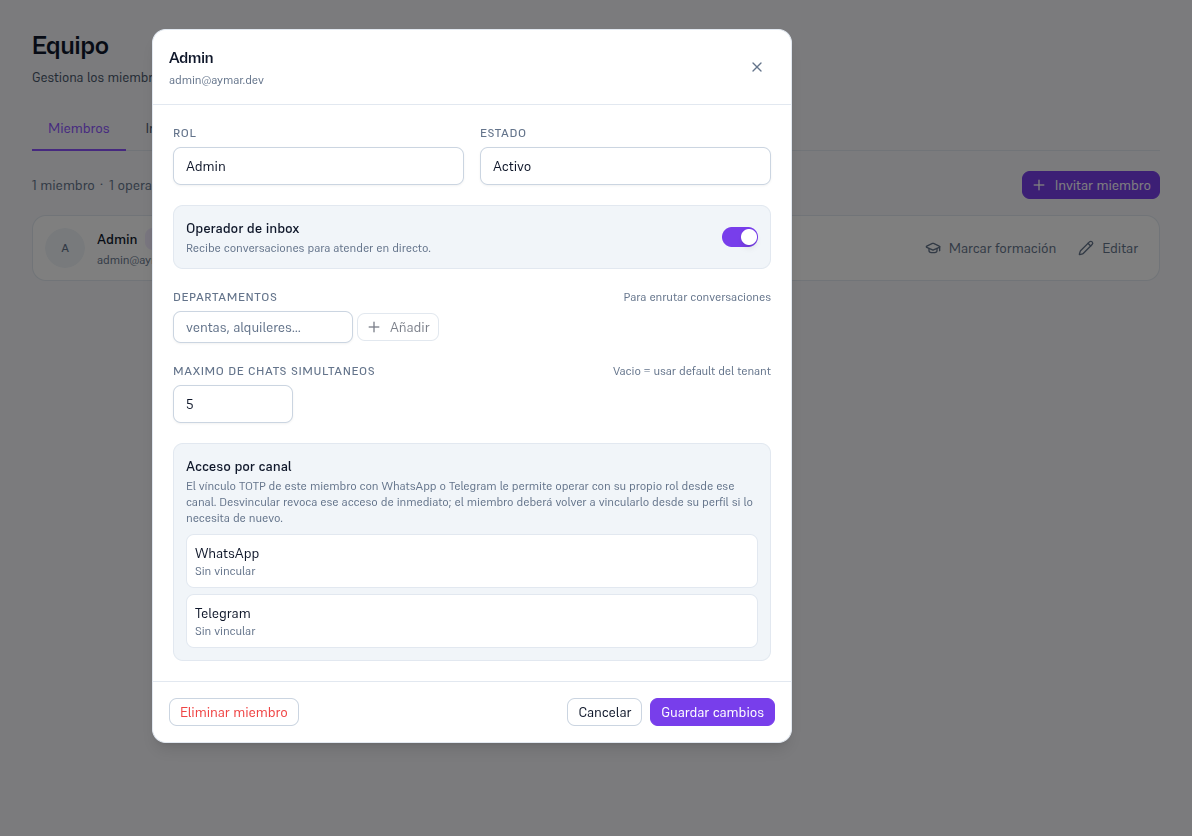
Edit Admin modal (admin@tu-negocio.com) with the "Channel access" section showing the text "This member's TOTP link to WhatsApp or Telegram lets them operate with their own role from that channel. Unlinking revokes that access immediately; the member will need to link it again from their profile if they need it again", and the WhatsApp/Telegram rows on "Not linked"