
Who it’s for: teams that want their agent to do something on its own beyond replying to a message — a scheduled follow-up, a multi-step process with decisions — without anyone having to launch it by hand every time.
What the end customer sees
Section titled “What the end customer sees”It depends on the step: if a job or flow includes sending the customer a message (an appointment reminder, say), they get it with the same AI notice as any other conversation. Many steps, though, are purely internal (checking something, notifying your team) and the customer sees nothing at all.
Steps in the product
Section titled “Steps in the product”-
Create a standalone job, for something one-off or repeated with no branches: in Jobs, press “Create job”, write the title and instruction in your own words, pick the agent, the trigger (once, recurring, by event, or by condition) and who runs it.
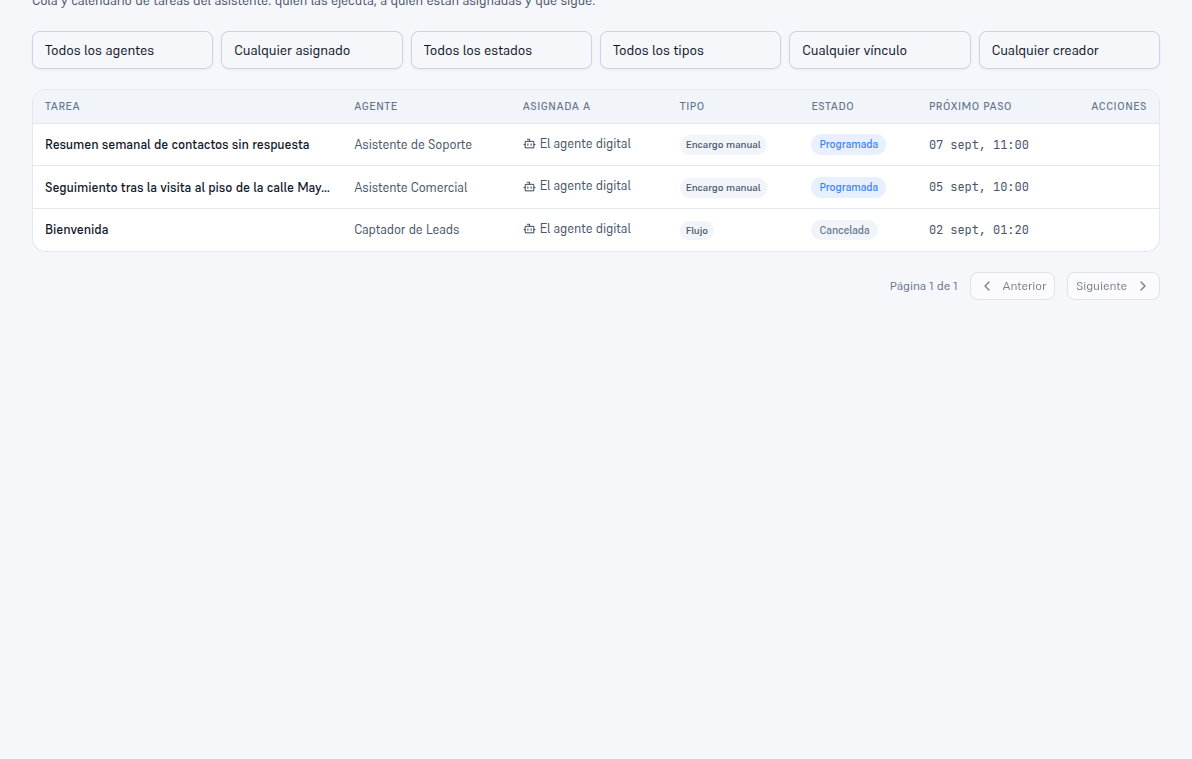
The Type column tells a manual assignment apart from a promise the assistant made itself, or a step belonging to a flow. -
Or create a flow, if the process has several steps and can take different paths: in Flows, press “New flow” and pick “From template” (faster, with steps and sometimes a decision already included) or “Blank” to build it yourself from scratch.
-
Adjust the trigger and the steps in the visual editor. The canvas shows cards connected by arrows; use “Add step” for a task or “Add condition” for a two-way (Yes/No) decision. Save when you’re done.
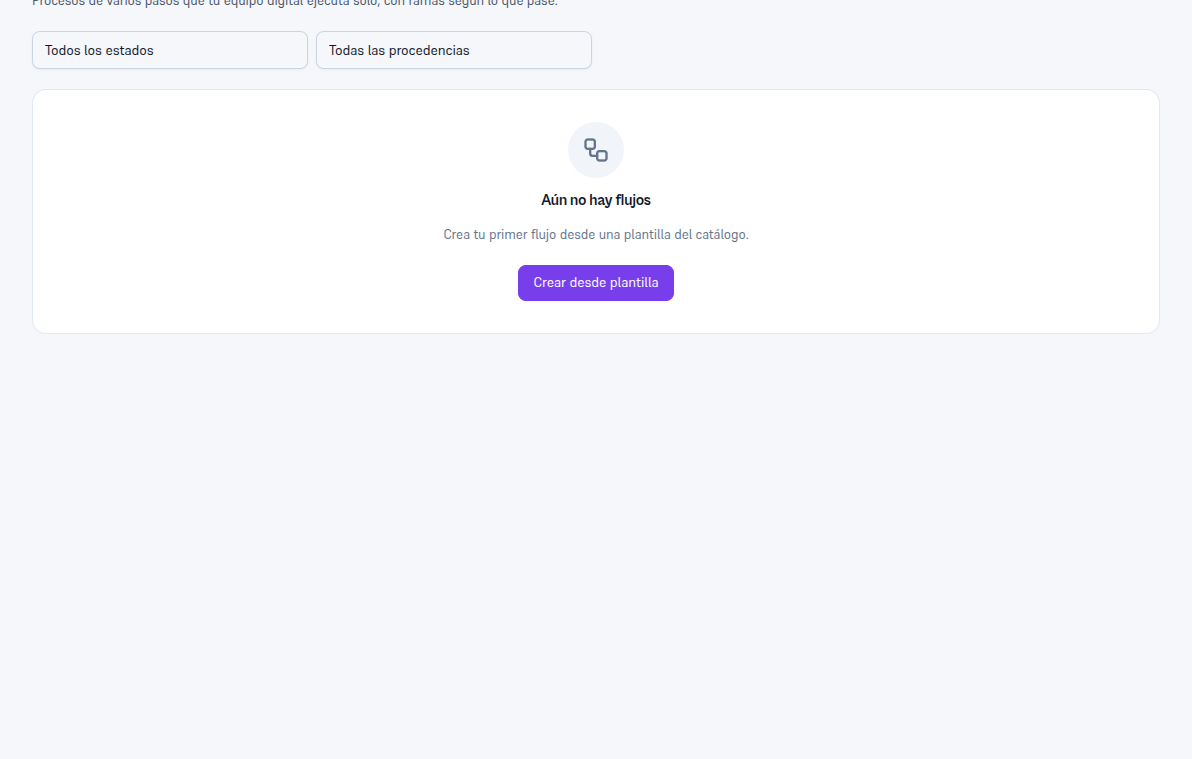
Before your first flow, this screen puts the template catalog right in front of you to get started faster. -
Turn the flow on with the switch on its detail page — while it’s off, you can still test it by hand with “Run now”.
-
Every run gets its own record, with the path taken, the same diagram from the editor with the completed stretch highlighted, and the full technical history — you never have to take its word for what it did.
-
If a step has no automatic action, it waits for someone on your team to complete it by hand from its own record in Jobs, with an optional closing note.
-
Ask for a flow over chat, in your own words (an “instruction”). Your assistant builds it for you; you can then edit it in the visual editor exactly like one built by hand or from a template.
What to configure
Section titled “What to configure”- Agent: every job and every flow runs under a specific agent’s identity — it’s never assigned directly to a channel.
- Trigger: a single date, a recurrence, an event (free, fires instantly) or a condition evaluated by AI (costs something, save it for what a machine can’t decide on its own).
- Link: internal, or tied to a lead or contact.
Limits and honesty
Section titled “Limits and honesty”- A step with no automatic action doesn’t complete itself: it stays “Active” until someone completes or cancels it by hand — there’s no deadline unless the task itself has a due date.
- If an automatic action fails, the system retries up to 2 more times (with growing waits, never past 1 hour); after 3 total attempts with no success, the task moves to Failed and you’re notified by bell (always) and email (if you’ve turned that on).
- “Overdue” (the deadline passed with no one acting) and “Failed” (an automatic action genuinely tried and couldn’t) are different statuses, even though both notify the same way.
- A job or flow is always assigned to an agent, never directly to a channel — an “by event” trigger can still be scoped to a specific origin channel.
- If the system was down when something scheduled was due to fire, nothing is lost: it checks and fires as soon as it’s back, even past the original time.
See also
Section titled “See also”- Jobs and flows — the full “Reminder and follow-up for a visit” case, step by step.
- Hand-off between agents — when what you need is to pass the conversation to another agent, not schedule a task.
- Tickets and internal follow-up — the alternative when a person runs the follow-up, not an automatic flow.