Your agency can have several AI agents handling different things — for example, one for sales and another for rentals. Resource tags are the mechanism for deciding which knowledge, which document templates and which MCP servers each one can use.
6.1. What resource tags are
Section titled “6.1. What resource tags are”A tag is a short word or phrase — for example “Sales”, “Internal” or “Rentals” — that groups your agency’s resources. They form a single catalog, shared across the whole company: the same “Sales” tag is used to mark knowledge-base documents, document templates and MCP servers alike.
| Resource type | Where it lives |
|---|---|
| Knowledge documents | Knowledge base → Documents (Manual 18 · Knowledge and documents). |
| Document templates | Documents → Templates (Manual 18 · Knowledge and documents). |
| MCP servers | Settings → MCP servers (Manual 26 · Settings and integrations). |
6.2. How to tag a resource
Section titled “6.2. How to tag a resource”The tag selector works the same way across all three resource types: type to search for a tag that already exists, or type the name of one that doesn’t exist yet and choose the “Create ’…’” option to create it on the fly — there’s no need to create tags separately before using them.
| Where to tag | How |
|---|---|
| When uploading a document | The upload zone in Knowledge base → Documents has a Tags field (optional). |
| From a document’s detail | Open the already-uploaded document and edit the Tags field; the change saves instantly, with no separate “Save” button. |
| In the template editor | When creating or editing a template in Documents → Templates there’s a Tags field. |
| When registering an MCP server | The Register server form in Settings → MCP servers has its own Tags field (Manual 26 · Settings and integrations). |
6.3. Procedure: give an agent access
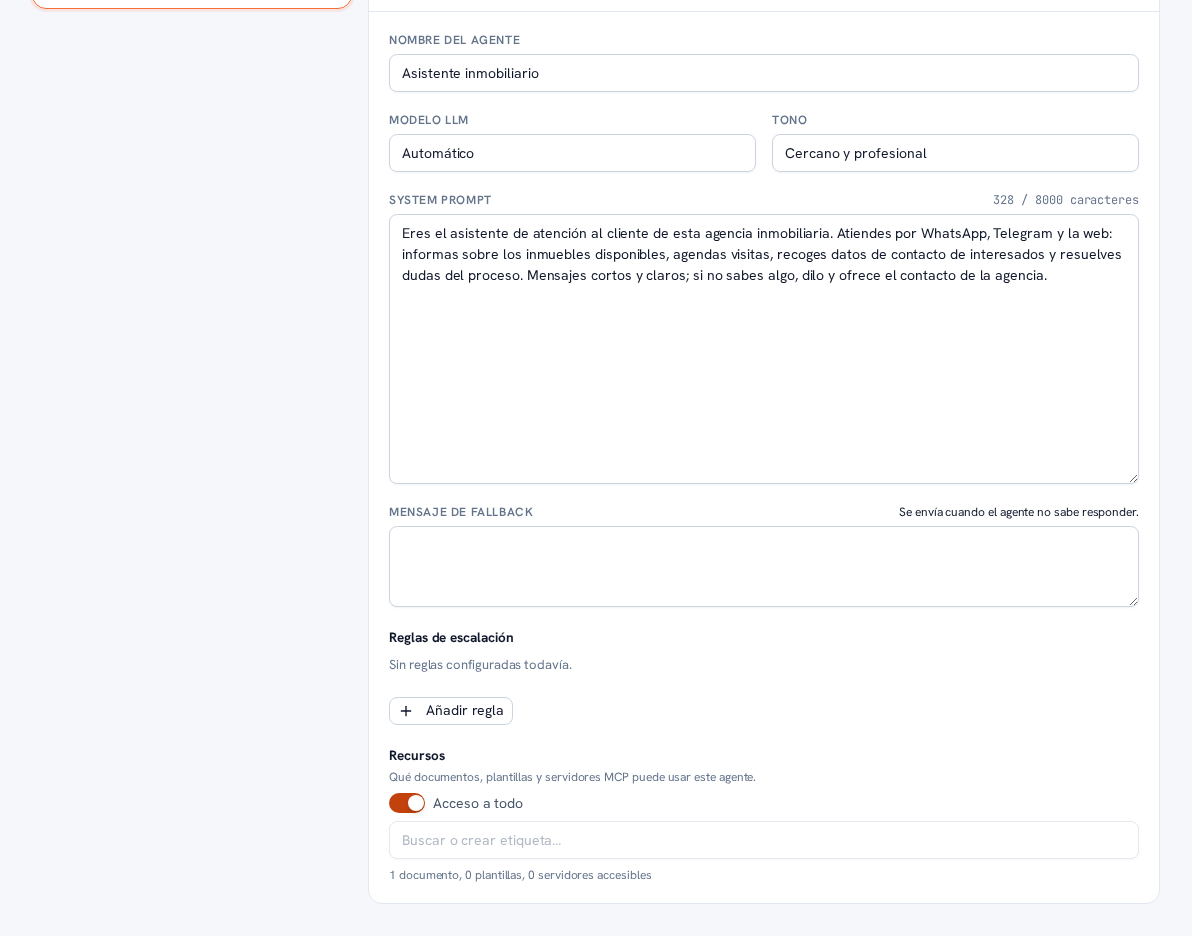
Section titled “6.3. Procedure: give an agent access”Both when creating an agent and when editing an existing one (sections 2 and 3), the form has a Resources section with two mutually exclusive ways to grant access.
Requirements: Admin role.
- In the agent’s Resources section, decide between the two ways to grant access: turn on the “Access to everything” toggle, or leave it off and use the tags selector.
- With “Access to everything” on, the agent can use all of your agency’s knowledge, all templates and all MCP servers, with no restriction — skip to step 4.
- With “Access to everything” off, search for or create one or more tags in the “Search or create tag…” box: the agent will only access resources that have at least one of those tags.
- Check the live summary below the selector, which instantly recalculates how many resources the agent would have with the current selection — for example “3 documents, 1 template, 2 servers accessible” — to check the scope before saving.
- Tap Save (if editing) or Create agent (if creating).
Result: the agent ends up with access to exactly the resources you decided — all of them, with “Access to everything”, or only the ones sharing any of the chosen tags.
Warning — The golden rule: no tags and no “Access to everything” means the agent sees nothing
A newly created agent has no access to any document, template or MCP server until you assign it tags or turn on “Access to everything” — that’s the expected behavior, designed so information never leaks between agents by accident. The same applies to a channel whose conversations no agent ends up resolving: it doesn’t use any resource either. For example, a sales agent with the “Sales” tag will never be able to see material tagged only as “Internal”, not even by mistake.
Note — Turning on “Access to everything” doesn’t erase your tags
If the agent already had tags selected and you turn on “Access to everything”, that selection stays saved — it’s only inactive while the toggle is on. If you turn it off later, you get back exactly the tags you had before, without choosing them again.
6.4. Checking what an agent sees: the Playground
Section titled “6.4. Checking what an agent sees: the Playground”The Playground tab on Knowledge base (Manual 18 · Knowledge and documents) has an Agent selector to preview exactly the knowledge each one would work with:
- If you choose a specific agent, the test query is resolved with the same resource scope that agent has assigned — exactly as it would see it in a real conversation.
- If you leave the “Global (no agent, full catalog)” option, the query searches across your agency’s entire knowledge, with no tag restriction: it’s an administrator’s view, useful for reviewing the full catalog, not the one any specific agent would use.
Note — How tags are managed
Tags are a single catalog for your whole agency. If one is renamed, the change is instantly reflected on every document, template, MCP server and agent it was assigned to — there’s no need to re-tag anything. If it’s deleted, it disappears from all those resources and agents, but the resources themselves aren’t deleted, they just lose that tag. Today, tags are only created “on the fly”, as you go, when tagging a document, a template, an MCP server or an agent (section 6.2): renaming or deleting an already-existing tag doesn’t have its own screen on the Platform yet — contact your provider’s team if you need it.
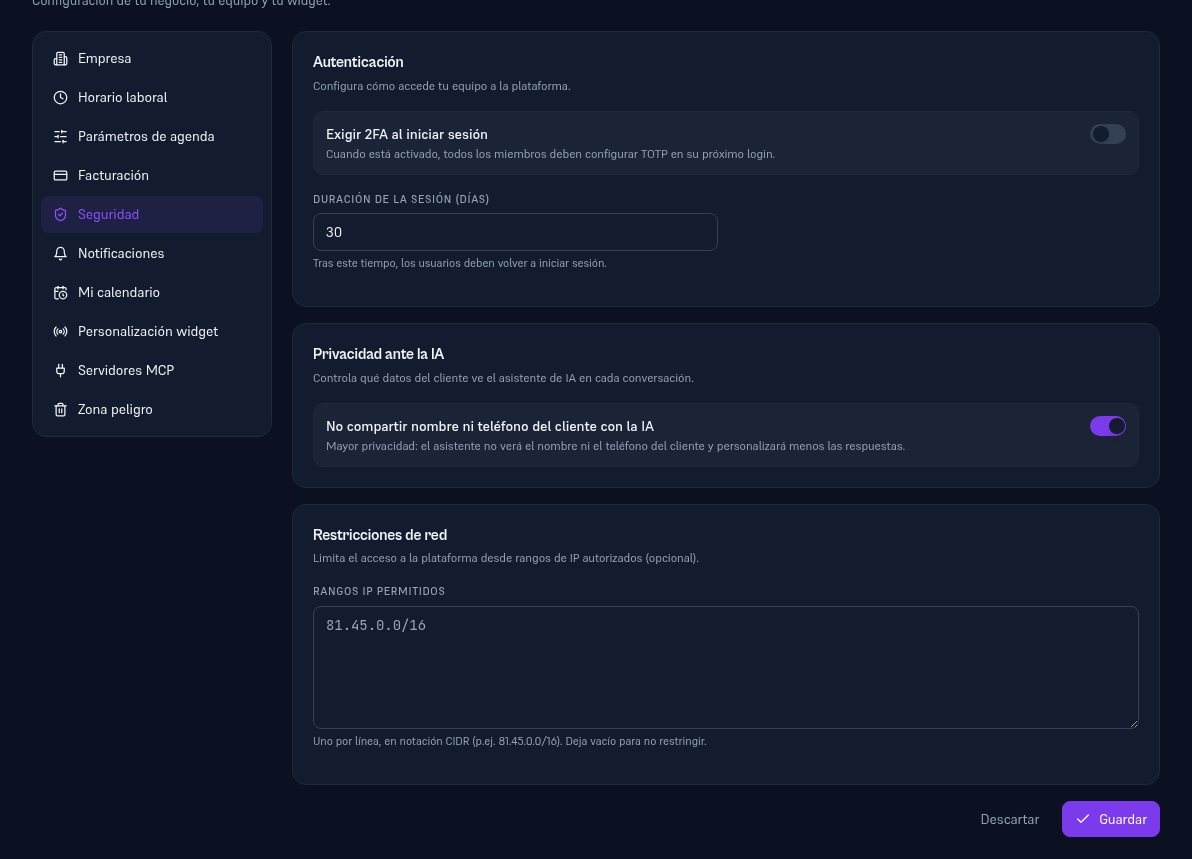
6.5. Privacy from the AI: what customer data the agent sees
Section titled “6.5. Privacy from the AI: what customer data the agent sees”Besides the resources (documents, templates, MCP), your agents receive the customer’s name and phone number by default in every conversation, to personalize their replies. If you’d rather have more privacy from the AI provider at the cost of less personalization, turn it on from Settings → Security → Privacy from the AI (Manual 26 · Settings and integrations): with the “Don’t share the customer’s name or phone with the AI” toggle on, ALL of your agents stop receiving those two fields in the prompt — it’s a single setting for the whole agency, not per agent. Features that still need the phone number regardless, like booking an appointment, keep receiving it through their internal channel: nothing breaks, only what the AI model “sees” in the text changes.