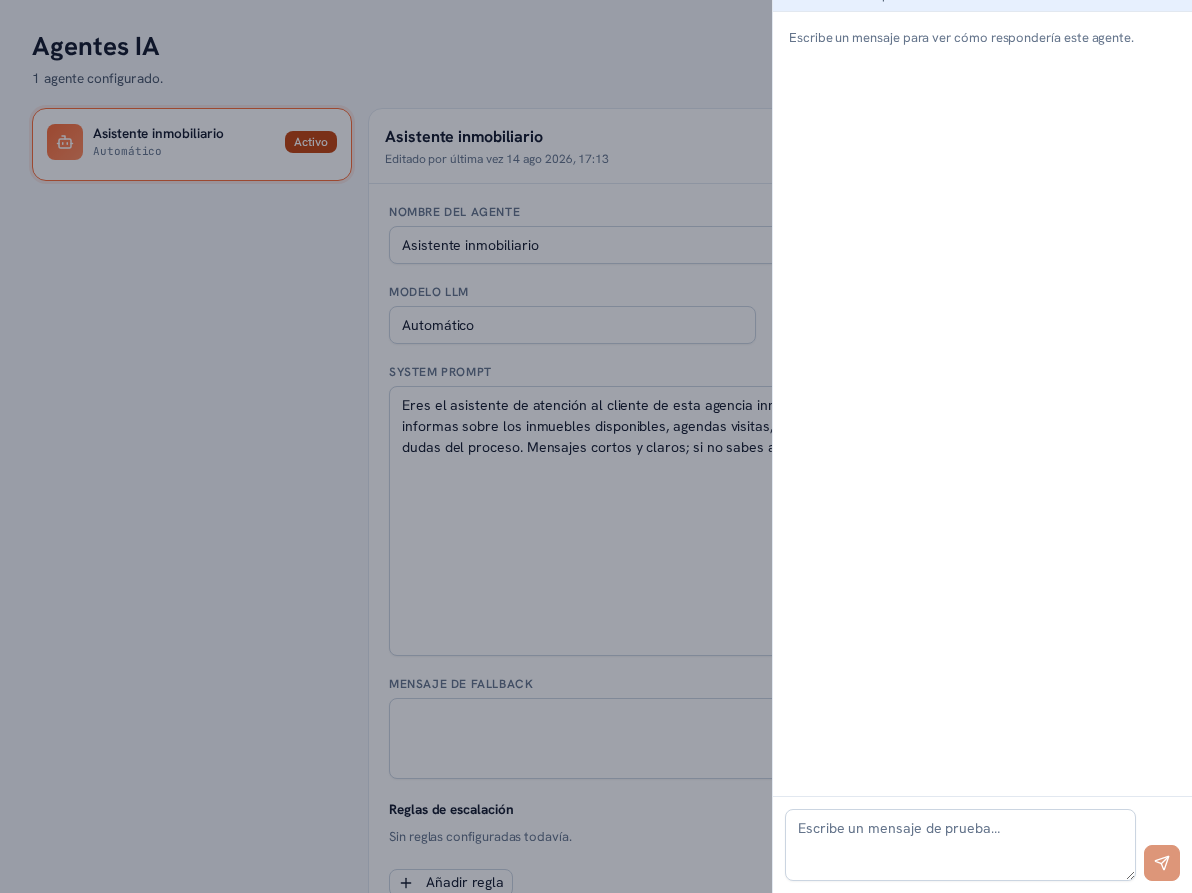
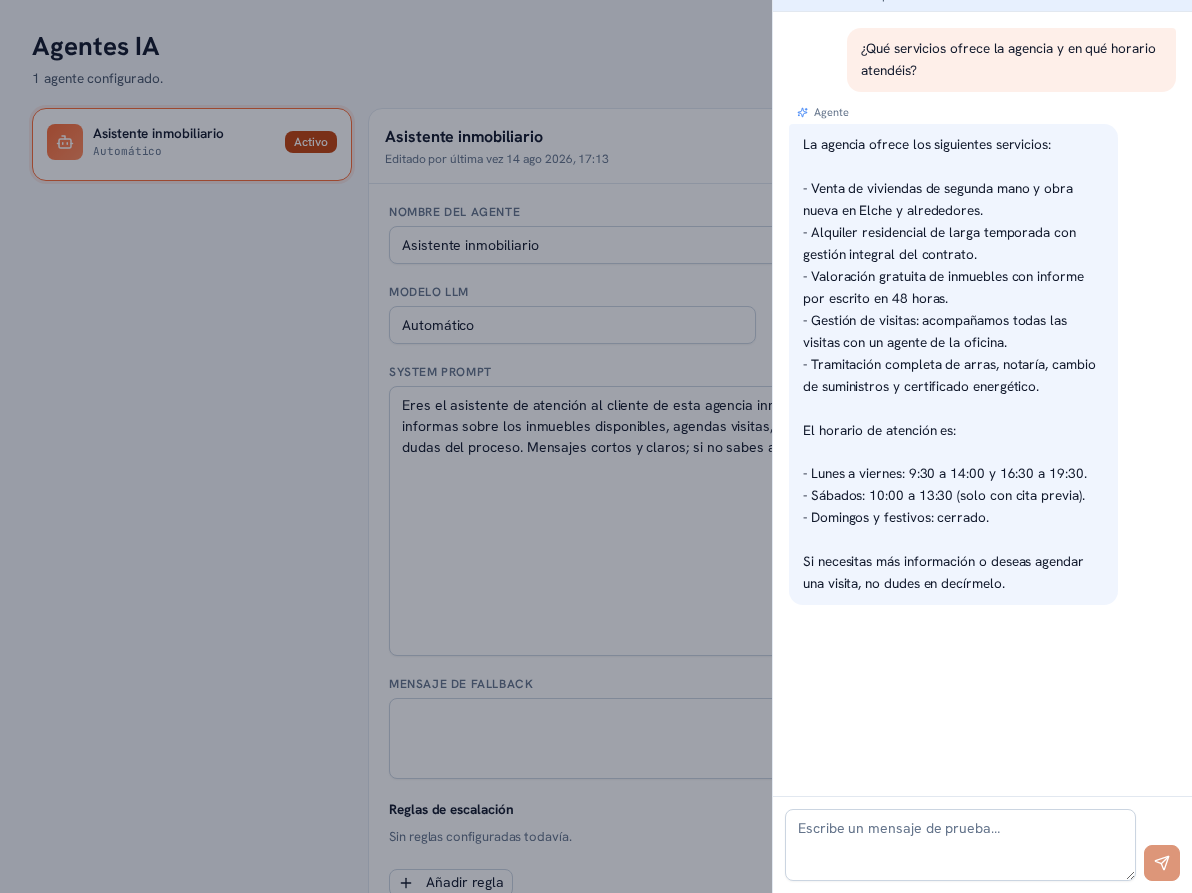
Before assigning it a real channel, or every time you touch its instructions, check how your agent actually replies with each agent’s Test button — with zero effect on your business. The test chat talks to the real agent: the same effective instructions, the same knowledge-base documents that agent has access to (section 6), and the same AI model configured (section 3.1).
Requirements: Admin or Editor role.
- In AI agents, find the agent you want to test and tap its Test button.
- A side panel opens with a notice explaining how the test works, followed by a message field.
- Type a question the way a real customer would and send it.
- Keep chatting as many turns as you need; the test’s history stays visible while the panel is open.
- Close the panel when you’re done.
Result: you see your agent’s real reply before a customer does — the same one it would give today in a real conversation, with the same knowledge scope and the same model.
Warning — Zero effect on your business
Testing an agent doesn’t create any real conversation: it doesn’t show up in the Conversations inbox, it doesn’t generate any lead, and it doesn’t count toward your plan’s conversation limit. The test’s history lives only on the screen — closing the panel loses it completely, it isn’t saved anywhere. The panel itself carries a notice summarizing all of this so it’s clear while you test.
Note — AI tokens are still consumed
Even though it has no effect on your conversations, every question you send in test mode is a real call to the AI: it consumes tokens from your plan just like a normal conversation, and that usage is logged in Settings → Billing (Manual 34 · Your agency’s billing and usage).
Note — Limited tools in test mode
In the test, the AI can only use search over your knowledge-base documents. The rest of the tools — for example, the ones from systems you connect via MCP servers (section 6, Manual 26 · Settings and integrations) — are turned off while testing.
Note — If your token quota is used up
When your plan’s monthly AI token quota is used up (Manual 34 · Your agency’s billing and usage, section 5), the test replies with the same honest quota-exhausted message a real conversation would use — never a technical error.