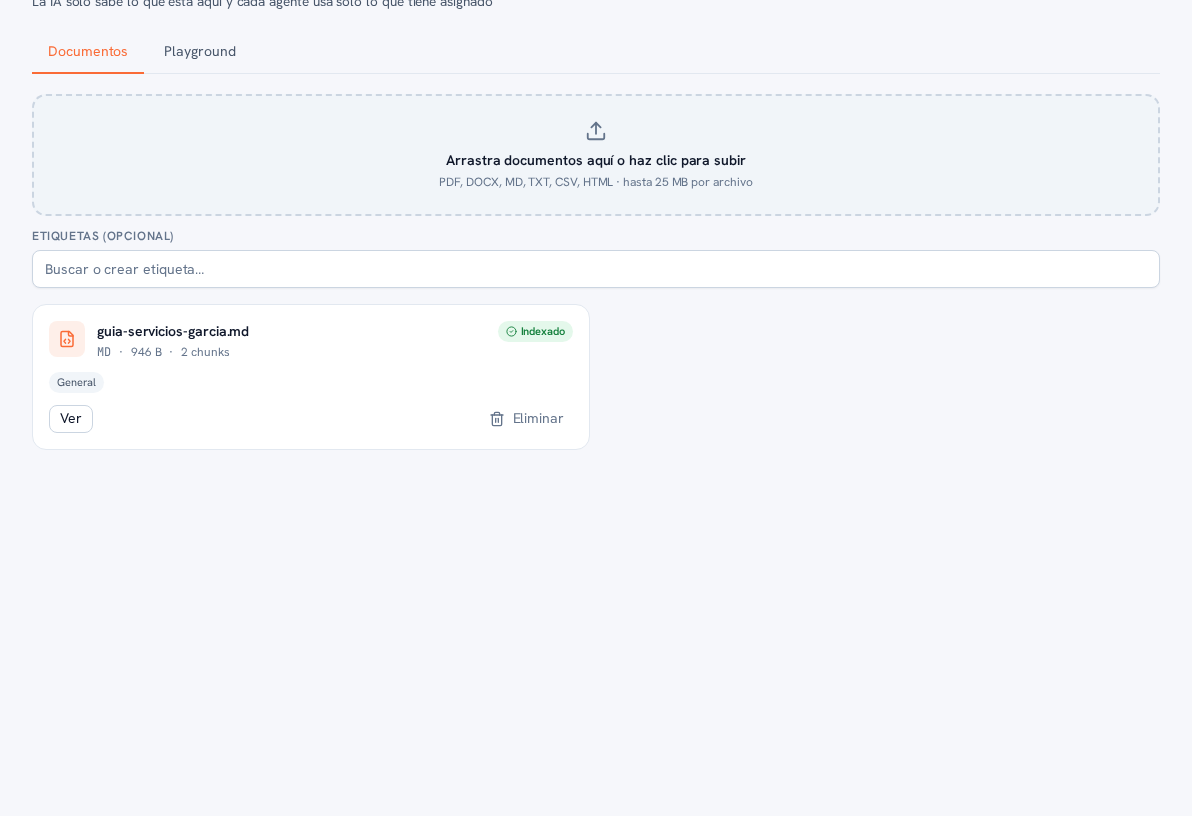
Once you have documents uploaded, this same screen lists them below the upload zone. Each document first goes through brief processing: while the AI analyzes it and splits it into fragments (“chunks”) it shows the “Waiting” status; as soon as it’s done, it switches to “Indexed” and is now available for the agent to consult. Each document’s card shows its name, file type, size, number of chunks (for example, “MD · 946 B · 2 chunks”), and that status.
Below the name, each document also shows its tags — the one assigned to it when uploaded, or “General” if you didn’t choose one (see section 2). Tags are what decides which AI agents can use each document (manual 23 · AI agents): an agent with “access to all resources” sees every document regardless of its tag; a tag-restricted agent only sees documents it shares at least one tag with, and a document with no tag in common with an agent is invisible to that agent.
Each document also has two buttons: “View”, to open its content, and “Delete”, to remove it from the knowledge base (it stops being available to any agent).