If your agency doesn’t exist on the platform yet, whoever registers it becomes its first administrator (self-service sign-up, covered in manual 22 · Account sign-up). If you’re not the one signing up the agency, you don’t register yourself: an administrator creates your account from Team → Invite member (manual 25 · Team and roles). Once you’re added, you’ll receive your credentials or an email to set your password.
2.1 Procedure: log in with email and password
Section titled “2.1 Procedure: log in with email and password”Requirements: already having an account on the platform (see above).
- Open the platform’s address in your browser. You’ll see the “Log in” screen.
- Type your Email and your Password in their fields.
- If you’re working from a trusted device, leave the “Keep me signed in” checkbox marked (it’s on by default) so you don’t have to identify yourself every time you open the platform.
- Tap Log in.
Result: you go straight into Home (section 5). Your session is protected with an httpOnly cookie: the access token isn’t reachable from the browser, so you don’t have to do anything special to keep it safe.
Note — Optional step: two-factor verification
If your account has two-factor verification enabled (Manual 26 · Settings and integrations, section 5), after typing your correct email and password you don’t go straight in: a second screen asks for the 6-digit code from your authenticator app (or a recovery code if you don’t have it handy). It’s optional: you only see it if you turned that verification on for your own account.
2.2 Procedure: log in with Google
Section titled “2.2 Procedure: log in with Google”As an alternative to the classic form, the login screen includes a “Continue with Google” button, separated from the form by the text “Or with your email”.
Requirements: your account is linked to that Google address (or it’s the first time you log in with a Google email that doesn’t have an account yet — the screen then offers to create a new account, a flow covered in manual 22 · Account sign-up).
- On the “Log in” screen, tap “Continue with Google”.
- Choose or confirm your Google account and grant consent if asked.
Result: you land in Home without having typed an email or a password. If the Google email doesn’t have an account yet, the screen offers to register instead.
Note — Language selector
At the top right of the login screen there’s a language selector (globe icon with the active language) that changes the language that screen is shown in, regardless of the language you later work with inside the platform.
2.3 Procedure: reset your password
Section titled “2.3 Procedure: reset your password”If you don’t remember your password, you can reset it yourself, without asking anyone.
Requirements: none in particular, just access to your account’s email.
- On the login screen, tap “Forgot your password?” (next to the Password field).
- On the “Reset password” screen, type your “Account email”.
- Tap “Send link” and check your email.
Result: if that email has an account, you’ll receive an email with the link to set a new password. You can go back to the login screen at any time with the ”← Back to log in” link, above the form.
Warning — For security
The platform never confirms whether an email exists in its database or not: whatever email you send, you see the same message. If you have an account, you’ll get the link; if you don’t, nothing else happens.
2.4 Procedure: log out
Section titled “2.4 Procedure: log out”Requirements: none, available to any role.
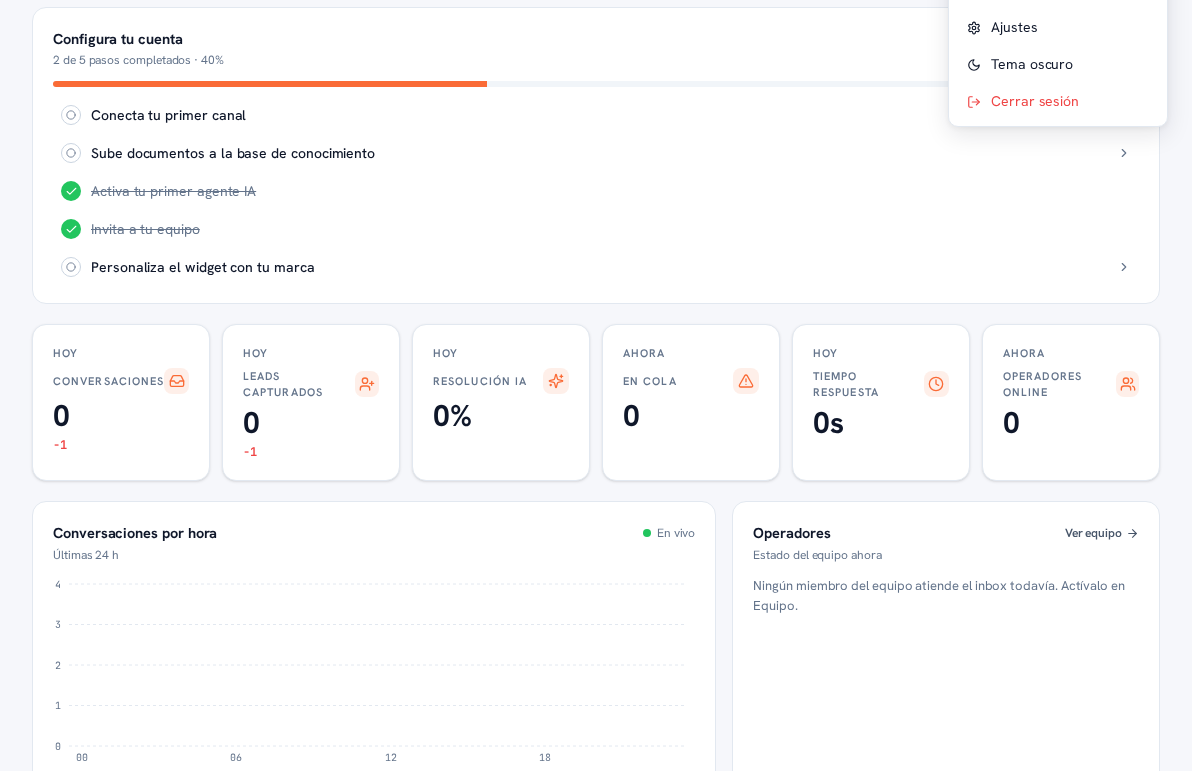
- Tap your avatar, at the top right of any screen (section 3.2).
- In the menu that opens, tap “Log out”.
Result: you go back to the “Log in” screen and your session is invalidated on that browser.
Note — “Profile”: your personal page
Tap “Profile” in that same menu to reach your account page: your personal API keys and your channel-linked access (WhatsApp/Telegram) — available to any role. Full procedure in manuals 50 · API keys and 51 · Channel-linked access.