
Who it’s for: businesses that want to message their customers outside an ongoing conversation — a campaign, a reminder — while following Meta’s rules for WhatsApp.
What the end customer sees
Section titled “What the end customer sees”The customer receives a WhatsApp message with the template’s content, already filled in with their data (name, or any other field you mapped). If they ever replied STOP or opted out, or are unsubscribed from marketing, they’re automatically excluded from any campaign — the system honors this even during conversations a human operator is running.
Steps in the product
Section titled “Steps in the product”-
Create the WhatsApp template. In Marketing → Templates, press “New template”, write a name and language, and the message body using positional variables (first, second…) wherever you want a contact’s data filled in. The template is sent to Meta for review.
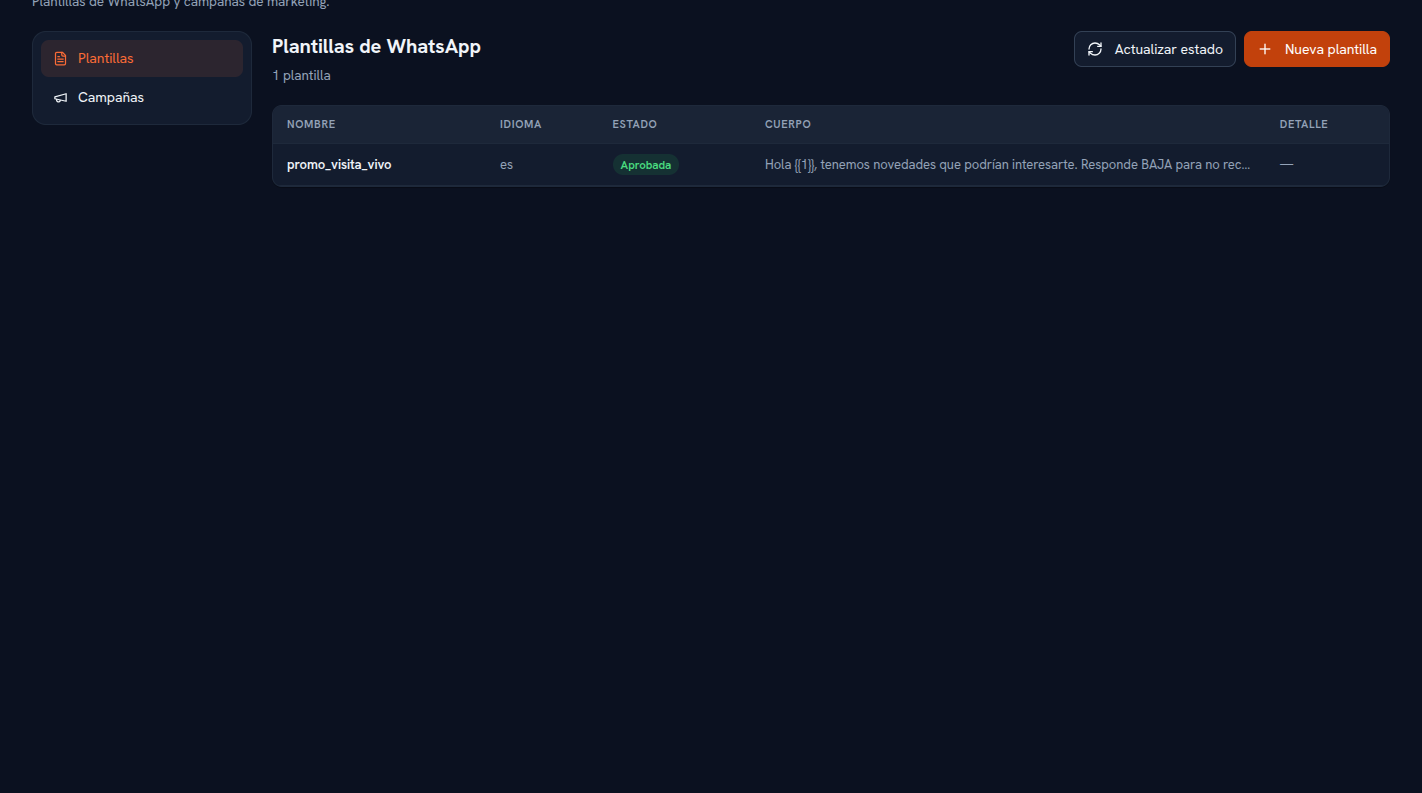
Only templates in Approved status are available to pick when you create a campaign. -
Wait for Meta to approve it. Press “Refresh status” to check again — only Approved templates are eligible for a campaign; if Meta rejects it or pauses it for quality, the status tells you.
-
Group your contacts into lists, if you want to reuse the same destination across several campaigns: press “Manage lists” in Contacts, create the list, and add or remove contacts by checking their boxes in the table.
-
Launch the campaign wizard. In Marketing → Campaigns, press “New campaign” and follow the four steps: name, recipients (a list or a manual selection), an approved template with a preview, and a confirmation summary of eligible recipients, ones excluded for opting out, and your plan’s remaining quota.
-
Confirm and sending starts right away. There’s no scheduled-for-later sending today — every campaign launches the moment you confirm it.
-
Watch results live in the Campaigns table: queued, sent, delivered, read, failed, and recipients excluded for opting out or because the monthly limit ran out — no recipient is ever silently dropped.
What to configure
Section titled “What to configure”- At least one template Approved by Meta.
- A connected WhatsApp channel, required to use templates at all.
- Contact lists, optional but recommended if you reuse the same destination across several campaigns.
Limits and honesty
Section titled “Limits and honesty”- Sending a campaign is always immediate once you confirm it — scheduling it for later isn’t available yet.
- Meta requires a pre-approved template to message outside an ongoing conversation; a free-form message isn’t an option for marketing.
- Your plan sets a monthly marketing-send limit, always visible in the Campaigns banner; once it runs out, the remaining recipients of a campaign already in progress land as “Excluded (limit)” — never silently sent without being counted.
See also
Section titled “See also”- Contacts and marketing — the full detail of lists, templates and campaigns.
- Lead capture via WhatsApp and web — where the contacts that later join a campaign come from.