Skip to content

Build

Step-by-step case: "Appointment reminder and follow-up"

Let’s create a real flow from a catalog template, adjust its trigger and its decision step, activate it, and watch a run progress on its own record.

  1. On Flows, tap “New flow”“From a template” (section 3.1).

  2. Choose the “Next-day appointment confirmation” template — it comes with 4 steps including a decision.

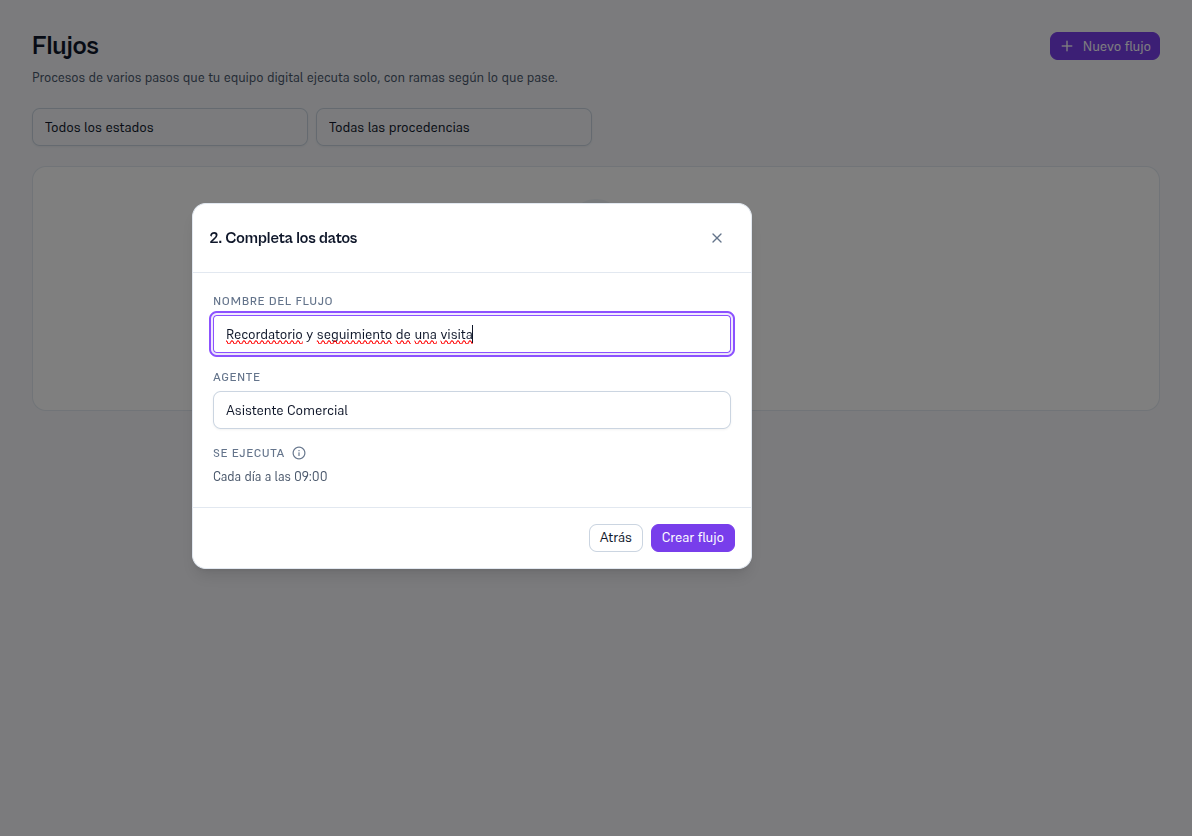
  3. Change the flow’s name to something of your own, for example “Appointment reminder and follow-up”.

  4. Choose the agent that’s going to run it — in this case, the Sales Assistant.

  5. This template doesn’t ask for any more data (some do, like a welcome message). Review how it runs by default below and tap “Create flow”.

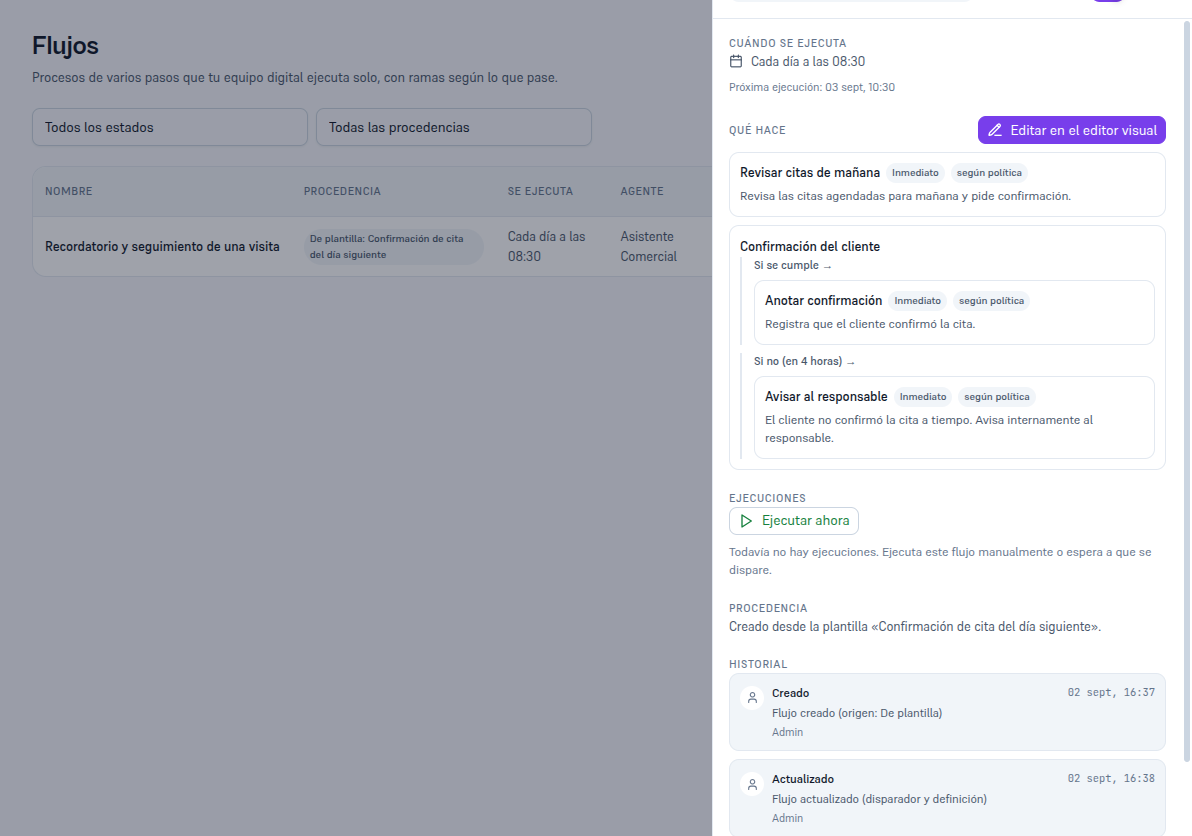
Once created, its record opens (section 3.2), with the active toggle off. Tap it to activate it.

4.3 Adjusting the trigger and the decision step

Section titled “4.3 Adjusting the trigger and the decision step”

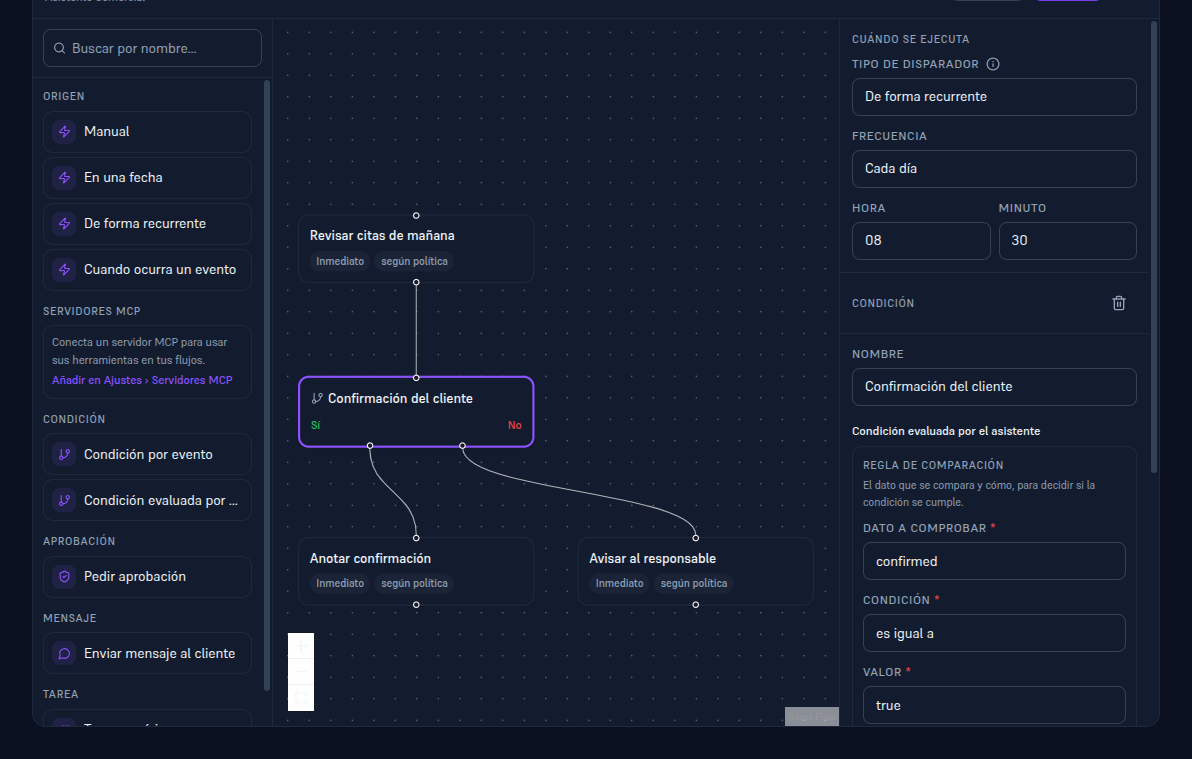
Tap “Edit in the visual editor”. Let’s move the daily check half an hour earlier and shorten how long we wait for the customer’s confirmation.

  1. In the “When it runs” panel, change the hour to 08 and the minute to 30 — the flow will now fire at 08:30.

  2. Tap the “Customer confirmation” card on the canvas — it’s the decision step, with two outputs (Yes/No).

  3. In its panel, change “How often it’s rechecked” to 1 hour (instead of 4) and the “Maximum deadline” to 4 hours (instead of 1 day) — that way the team finds out sooner if the customer hasn’t confirmed.

  4. Tap “Save”, at the top right.

Note — What this template’s two branches mean

If the customer confirms in time (“Yes”), the flow just logs the confirmation. If they don’t confirm within the maximum deadline (“No”), it notifies the owner internally — the customer never sees a “you ran out of time” message, it’s an internal notice for your team.

  1. Back on the flow’s record, scroll down to “Runs” and tap “Run now”.
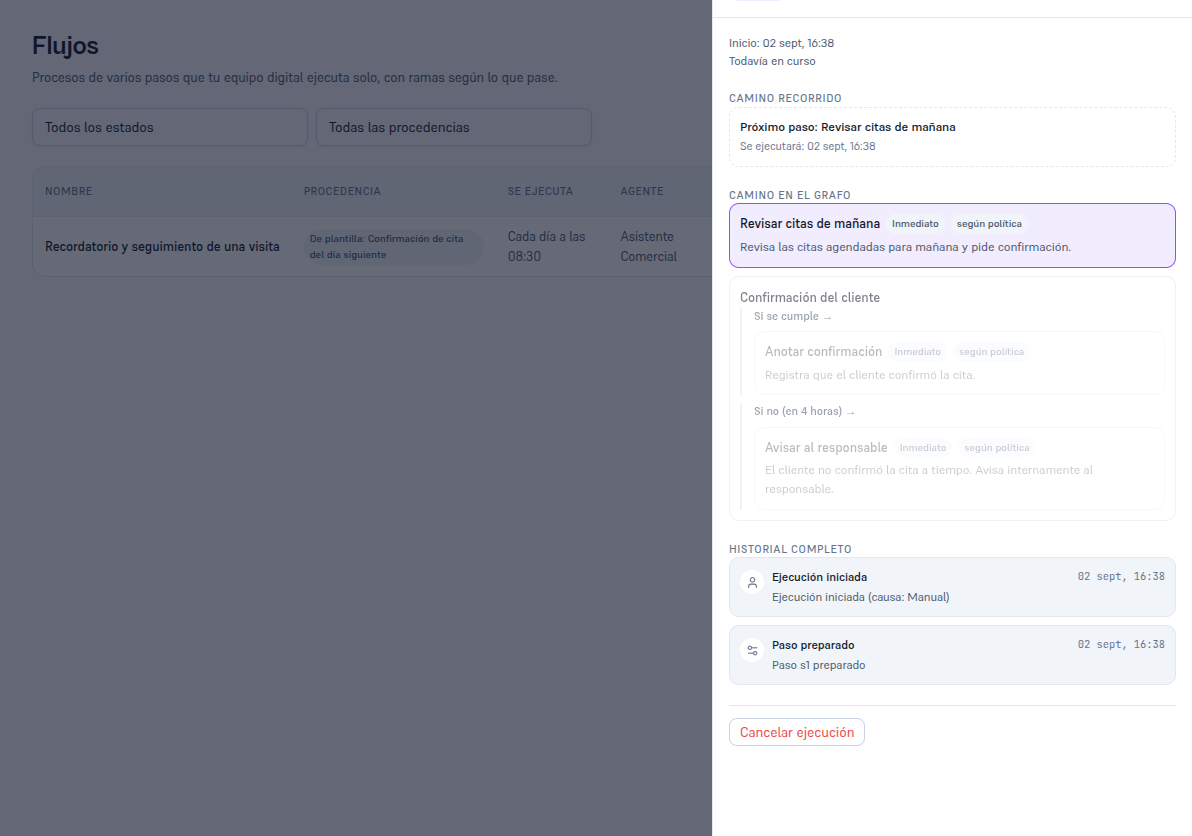
  2. The run record opens instantly, with the first step just set up.

This template’s first step (“Check tomorrow’s appointments”) is an instruction with no automatic action attached — so, as soon as its turn comes up, it’s left waiting for someone on the team to complete it by hand. That’s normal: it happens with any step (from a flow or stand-alone) that doesn’t have a curated action behind it.

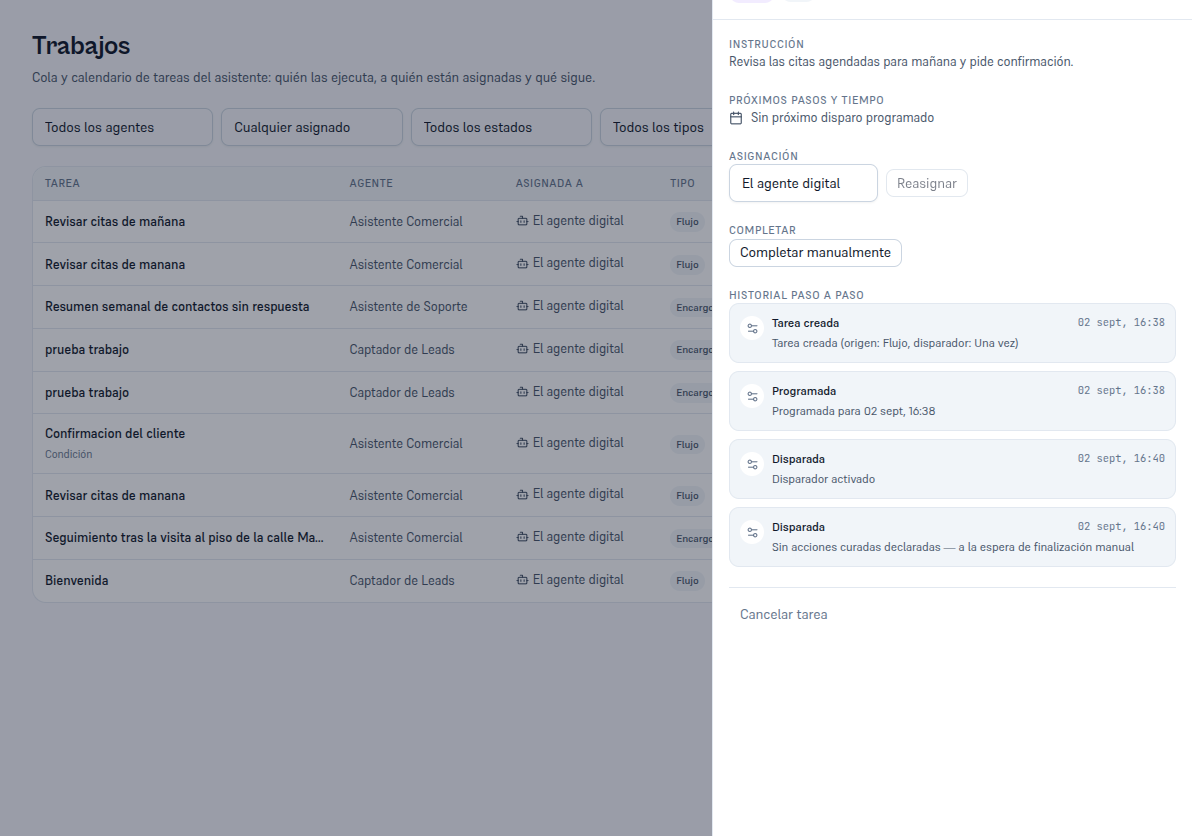
  1. Go into Jobs and open the “Check tomorrow’s appointments” task (Flow type, Active status).

  2. Scroll down to “Complete” and tap “Complete manually”.

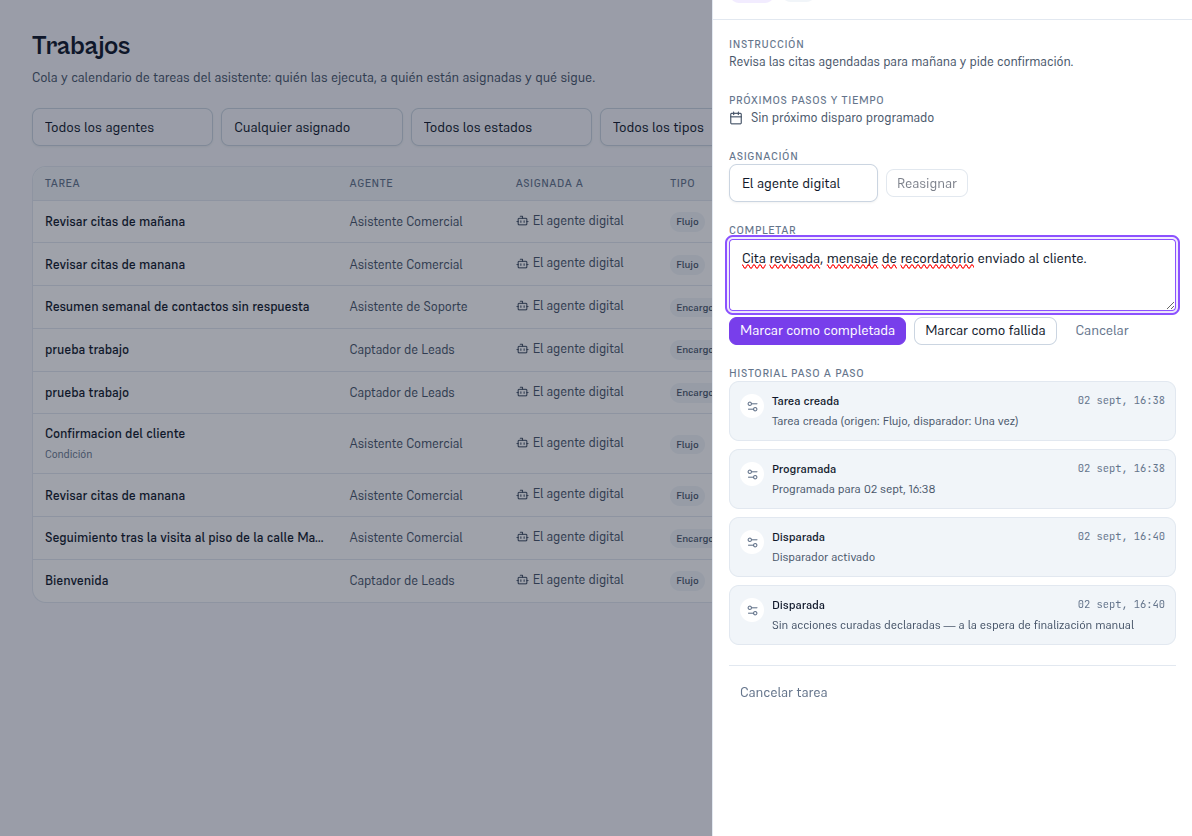
  3. Type, if you want, a closing note — for example, “Appointment checked, reminder message sent to the customer”.

  4. Tap “Mark as completed”.

4.6 The flow moves on to the decision step

Section titled “4.6 The flow moves on to the decision step”

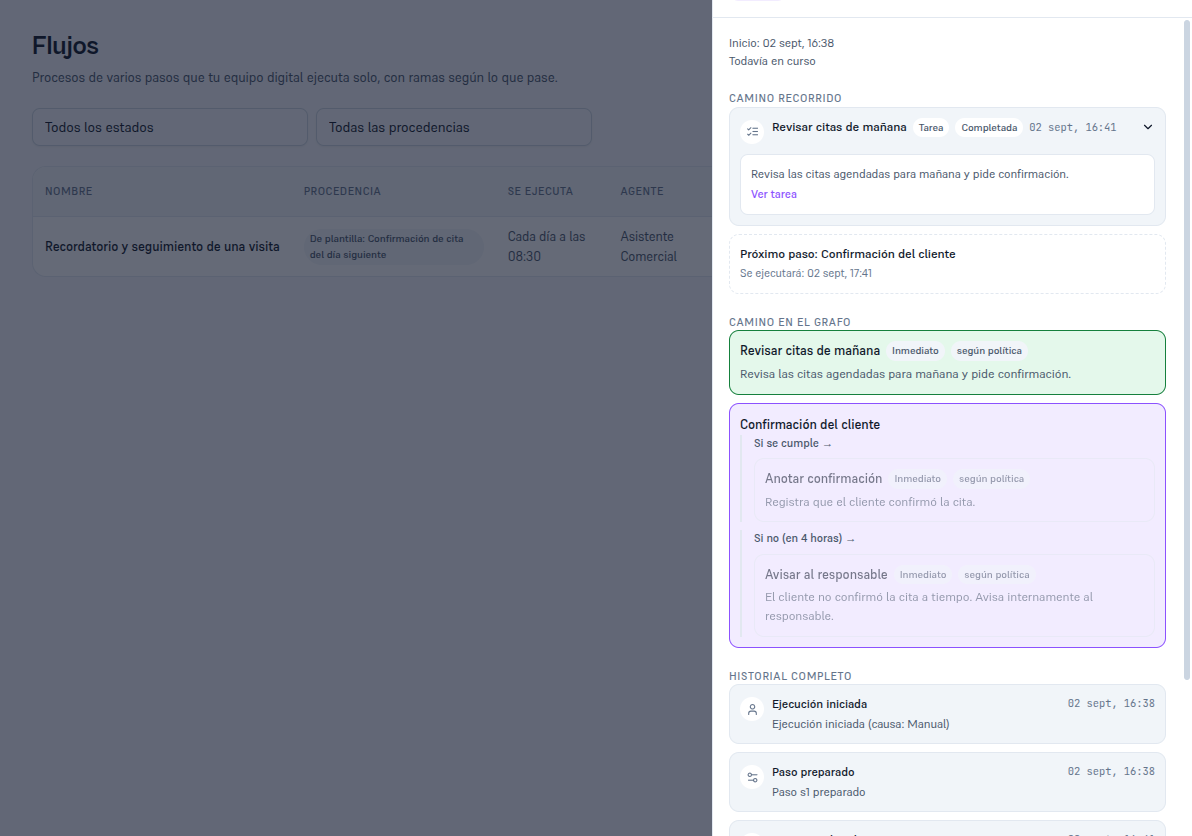
As soon as you mark the first step as completed, the flow automatically sets up the next one. Go back to the run record (from the flow’s record, or from the “View task” link on any of its steps) to see it.

What’s next: since this step is checked “when the assistant evaluates it” (section 4.3), the assistant reviews it every hour — with no real confirmation data available, it keeps retrying until the appointment is confirmed or, once the 4-hour maximum deadline passes, it takes the “No” branch and notifies the owner. All of that reasoning is logged in the run record’s full history, step by step.
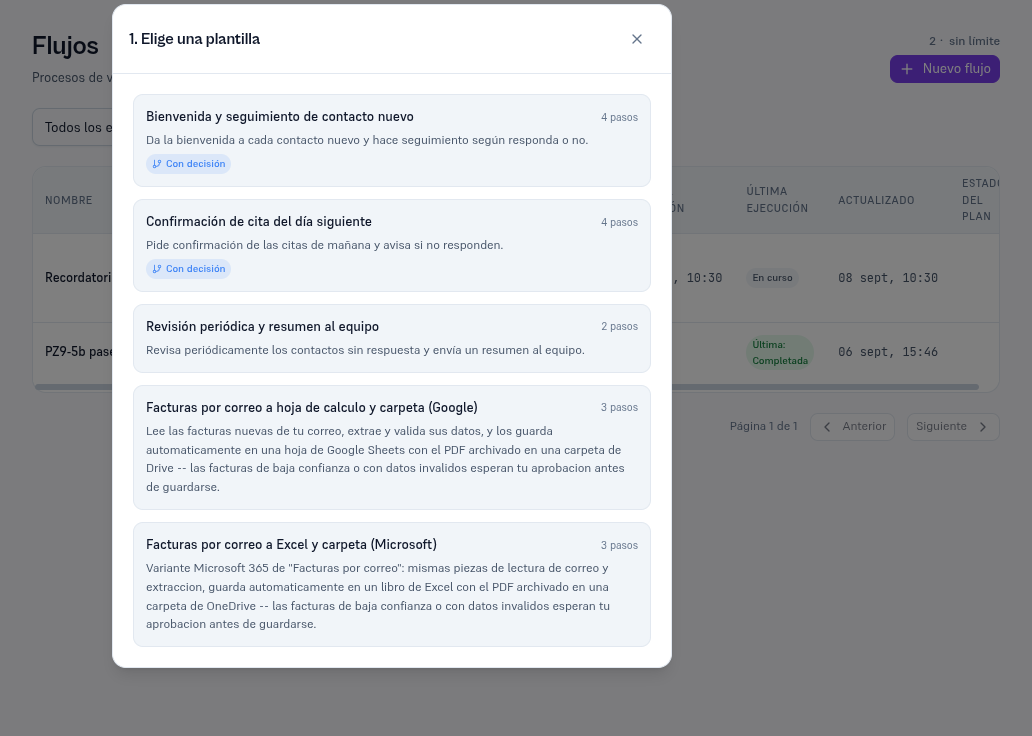
Step 1 "Choose a template" of the New flow from template modal, with five cards: Welcome and follow-up for a new contact (4 steps, with a decision), Next-day appointment confirmation (4 steps, with a decision), Periodic review and team summary (2 steps), Invoices by email to a spreadsheet and folder (Google) (3 steps) and Invoices by email to Excel and a folder (Microsoft) (3 steps)

Step 2 "Complete the details", with the flow name "Reminder and follow-up for a visit", the Sales Assistant agent and the default trigger "Every day at 09"

Visual editor with the "Customer confirmation" card selected (highlighted in purple, with the Yes and No branches) and its edit panel: How it's checked "When the assistant evaluates it", description "Has the customer confirmed the appointment?", Re-check frequency "1 hour", Maximum deadline visible at the bottom

The flow's detail with the active toggle on next to the Sales Assistant agent name, the When it runs section "Every day at 09", What it does with the 4 steps and the Edit in visual editor button

The flow run's detail just launched, In progress status, Manual cause, the path so far showing "Next step: Review tomorrow's appointments", the full graph path and the full history with Run started and Step prepared

The run's detail with the path so far showing the "Review tomorrow's appointments" step completed with a Completed badge and a View task link, the next step "Customer confirmation" with its expected time, and the graph path with the first step in green and the condition in purple

The Complete section expanded with the closing-notes field filled in "Appointment reviewed, reminder message sent to the customer" and the Mark as completed, Mark as failed and Cancel buttons

The "Review tomorrow's appointments" task detail, Active status, Flow type, with the Complete section showing the "Complete manually" button and the step-by-step history with the Task created, Scheduled and two Triggered entries