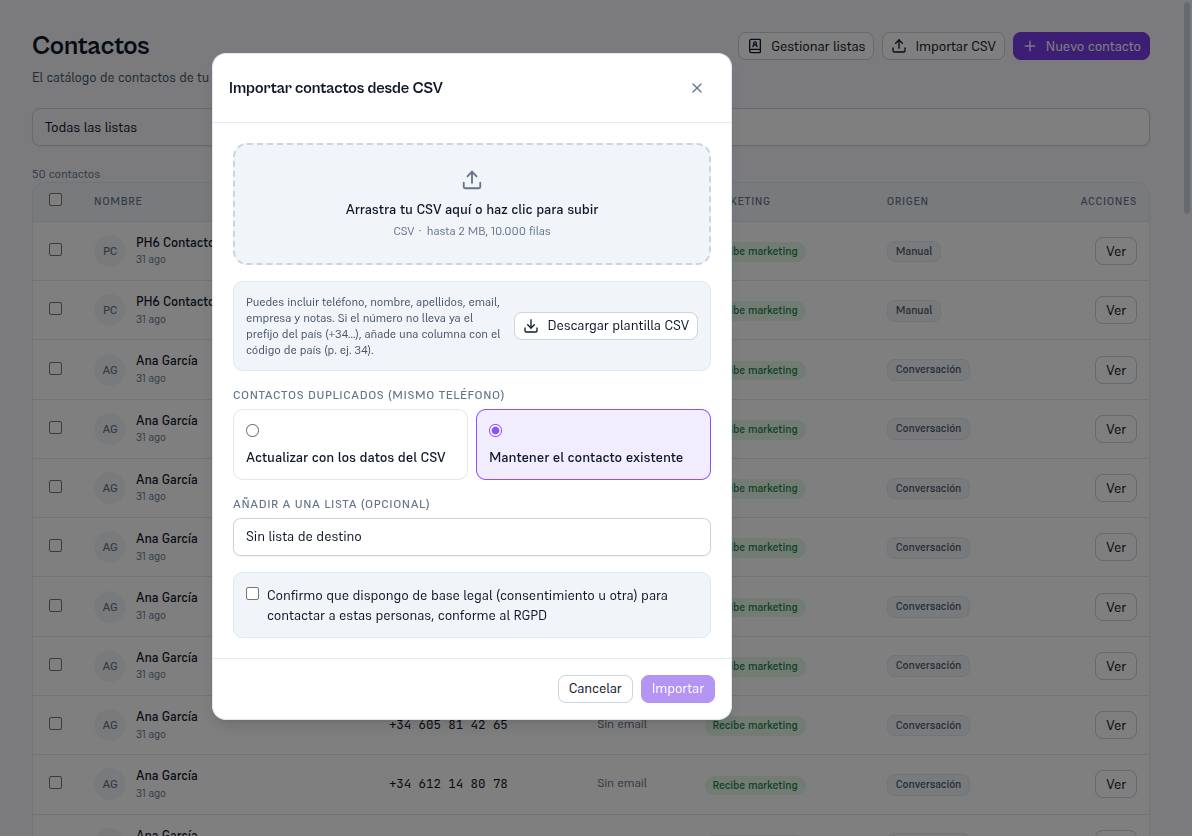
Requirements: administrator or editor role; a CSV file up to 2 MB and 10,000 rows.
- Tap “Import CSV”, at the top right of Contacts.
- The modal itself documents the columns it accepts (“You can include phone, first name, last name,
email, company and notes. If the number doesn’t already carry the country prefix (
+34…), add a column with the country code (e.g.34).”) and offers a “Download CSV template” button with the columns already named and a sample row — the fastest starting point if you don’t already have your own file. - Drag your file or click to choose it.
- Choose what to do with a duplicate contact (same phone): Update with the CSV’s data or Keep the existing contact.
- Optionally, choose a destination list: every contact from the CSV that resolves to a real contact (new, updated or kept) becomes a member of that list.
- Check the “I confirm I have a legal basis (consent or other) to contact these people, per GDPR” box — required, the Import button stays disabled until you check it.
- Tap Import.
Result: a report with how many contacts are new, how many updated, how many skipped, and, if any row failed, the exact line with the reason (missing or invalid phone, or an email already used by another contact) — the rest of the file imports regardless, one row with an error never blocks the others.
Note — Why we ask you for this
GDPR requires that whoever processes people’s data have a legal basis for doing so (consent, legitimate interest, performance of a contract…). By checking the box, you declare you have it for the contacts in that CSV — the Platform logs that confirmation in the audit log, without saving any additional personal data from the file.
Accepted column headers (in Spanish or English, case-insensitive) — any other column in the CSV is ignored with no error:
| Data | Accepted header |
|---|---|
| Phone | telefono / phone |
| Country prefix | codigo_pais / country_code |
email | |
| First name | nombre / first_name |
| Last name | apellidos / last_name |
| Company | empresa / company |
| Notes | notas / notes |
Phone is the only strictly required column (in international format, or with the prefix in its own column); first and last name are combined into the contact’s full name.