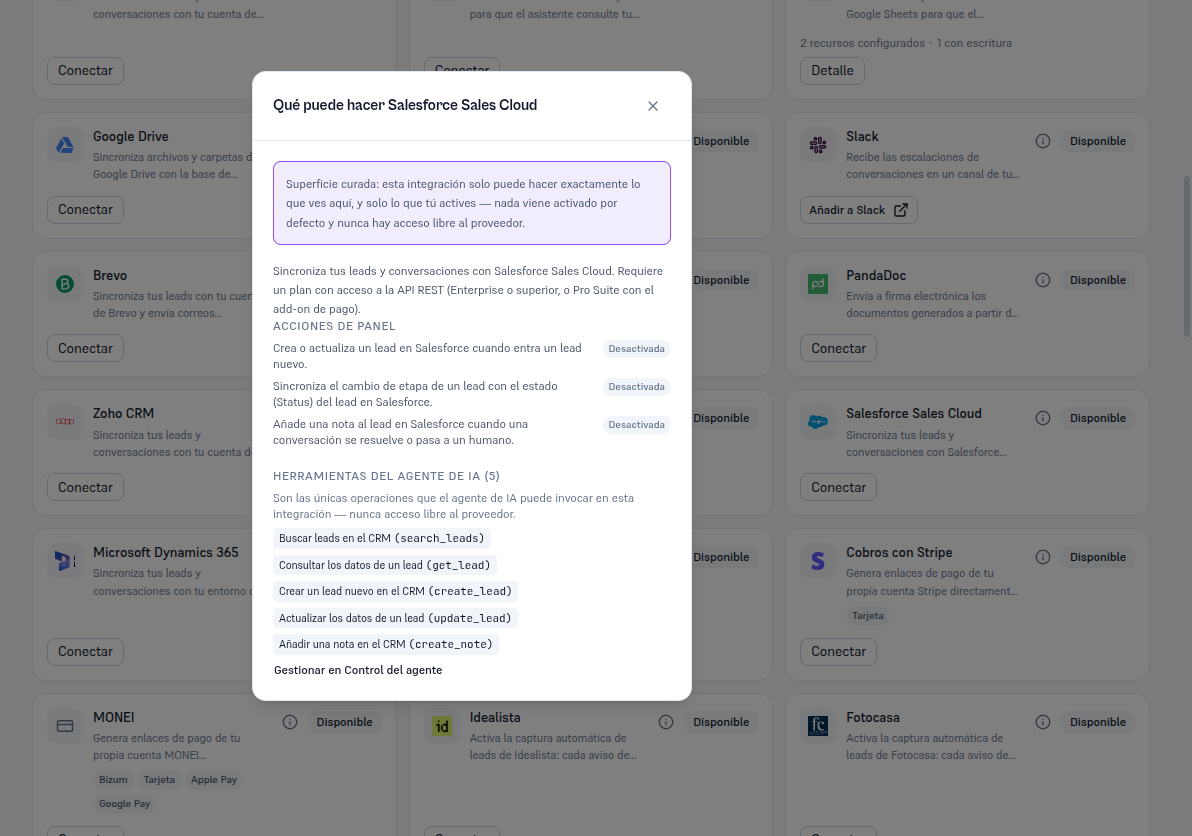
Connecting Salesforce doesn’t activate anything on its own: both the panel actions and the agent tools are born off.
From the Salesforce card, already Connected, press Details to open its sheet: Resources (empty, Salesforce has no additional resources to configure here), Agent, Connections (the “principal” connection, the only one for this integration) and Status (section 6).
In the Agent tab:
| Panel action | What it does |
|---|---|
| Lead → contact | Creates or updates a lead in Salesforce every time a new lead enters your Platform. |
| Stage → deal | Syncs a lead’s stage change with the lead’s Status field in Salesforce. |
| Conversation note | Adds a note to the lead in Salesforce when a conversation is resolved or handed to a human — with a bounded excerpt, never the full conversation. |
And the list of AI agent tools, with the five operations the agent can invoke (section 7), each with its checkbox and a “Manage in Agent control” link to decide, per tool, whether it’s Internal or Both (Manual 52 · Agent control and permissions). By default, “Create a new lead in the CRM” and “Add a note in the CRM” are Both; “Search leads”, “Look up a lead’s data” and “Update a lead’s data” are Internal.
The “What can Salesforce Sales Cloud do” button (the i icon) on the card shows this same summary without needing to connect yet.
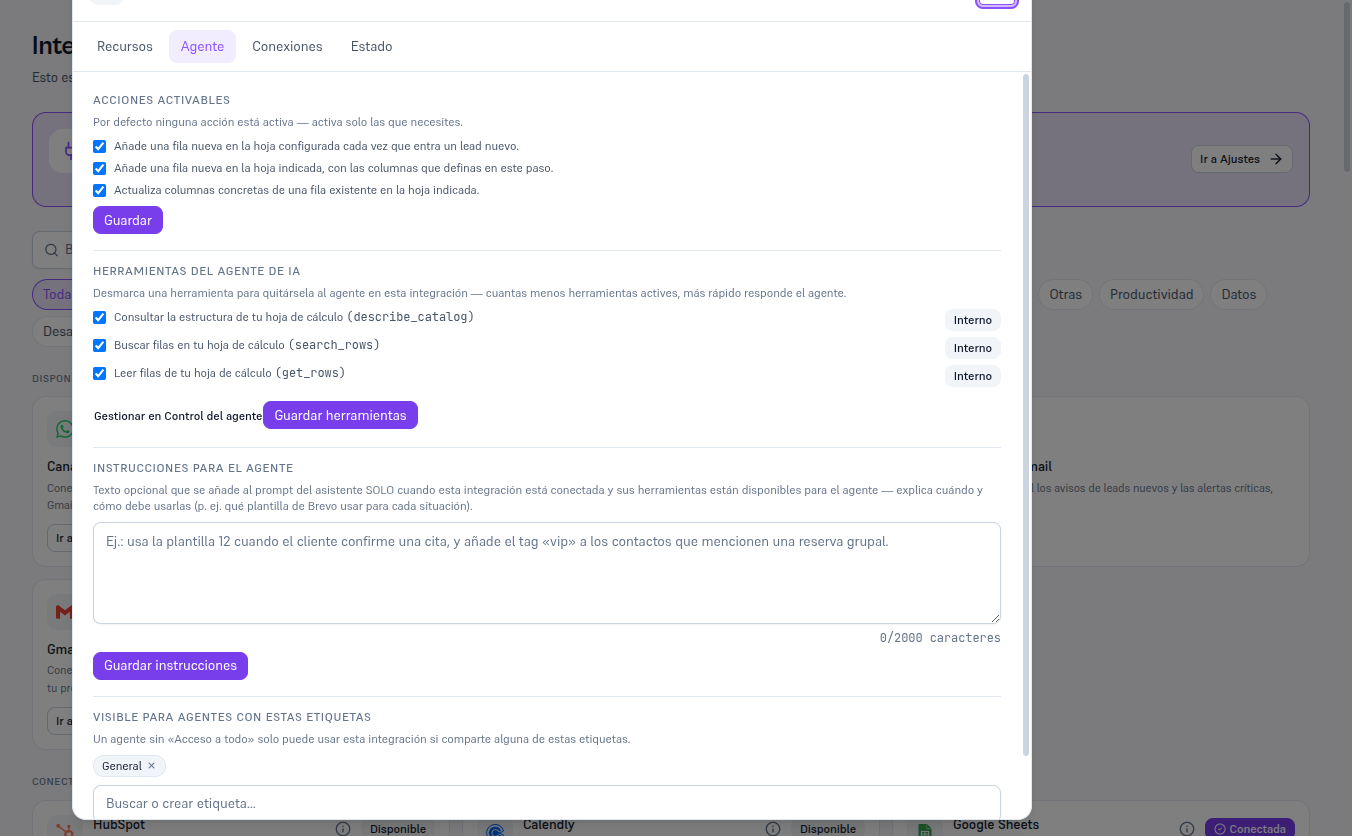
Once connected, the detail’s Agent tab shows the same lists, now with checkboxes to activate/deactivate. The following example uses Google Sheets (already connected on this test tenant) to show what that tab really looks like once there’s a connection — with Salesforce connected you’ll see the same layout, with Salesforce’s own actions and tools described above.