
Skip to content

By integration

In Platform: connecting HubSpot

Requirements: Admin role; the HubSpot token from section 3.

  1. In Integrations, find the HubSpot card (in “Available” status) and press Connect.
  2. The “Connect HubSpot” modal repeats the help text and the five scopes above, so you have them handy without going back to HubSpot.
  3. Paste the private app token into the field.
  4. Press Connect.

Result: the Platform verifies the token against HubSpot for real before saving anything — it doesn’t accept a token that merely looks valid. If verification fails, you’re told the specific error (section 8) and no credential is saved. If it succeeds, the card switches to Connected.
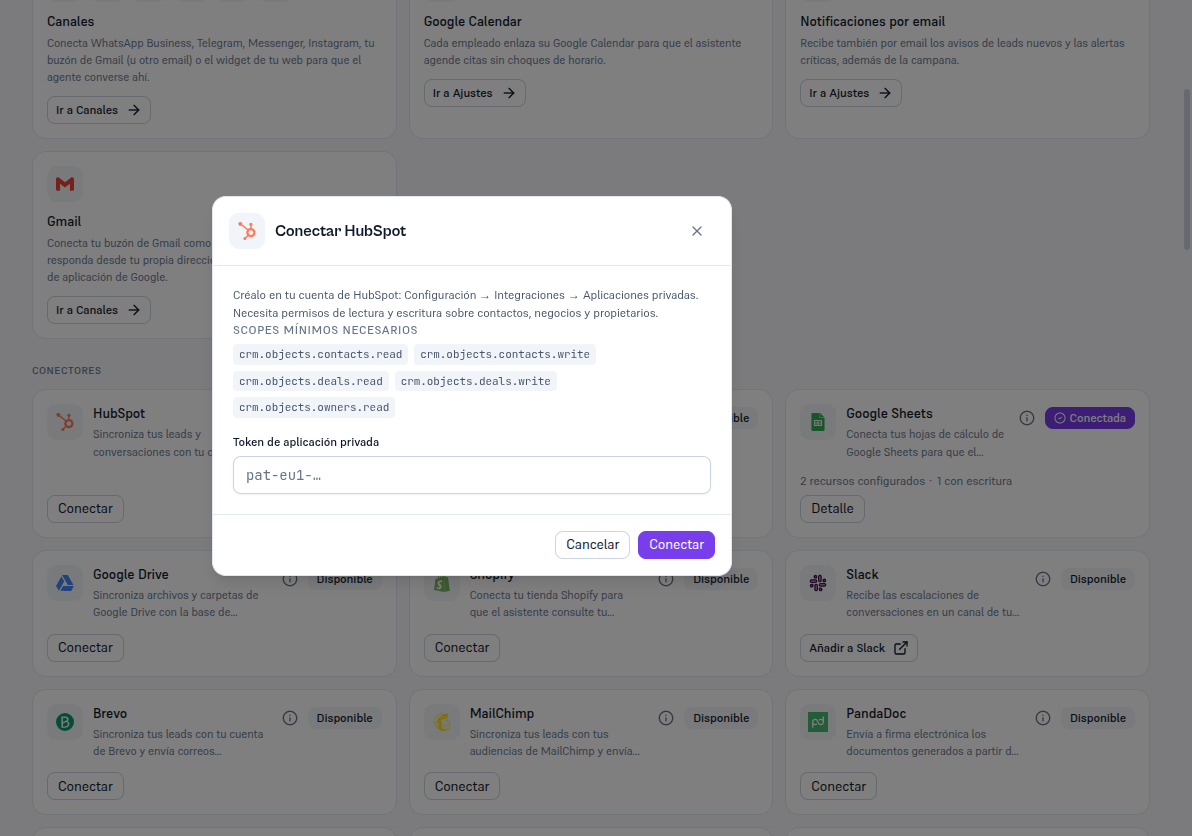
«Connect HubSpot» modal with the instruction to create it under Settings → Integrations → Private apps in HubSpot, the five minimum required scopes (crm.objects.contacts.read, crm.objects.contacts.write, crm.objects.deals.read, crm.objects.deals.write, crm.objects.owners.read), the Private app token field with the pat-eu1-… placeholder and the Cancel and Connect buttons