Connecting HubSpot doesn’t activate anything on its own: both the panel actions and the agent tools are born off — the same “nothing on by default” principle that governs the rest of your agents’ resources.
From the HubSpot card, already Connected, press Details to open its sheet. You’ll see four tabs — Resources (HubSpot has no additional resources to configure here, so this tab stays empty), Agent, Connections (the “principal” connection, the only one for this integration) and Status (section 6).
In the Agent tab you’ll find two independent lists:
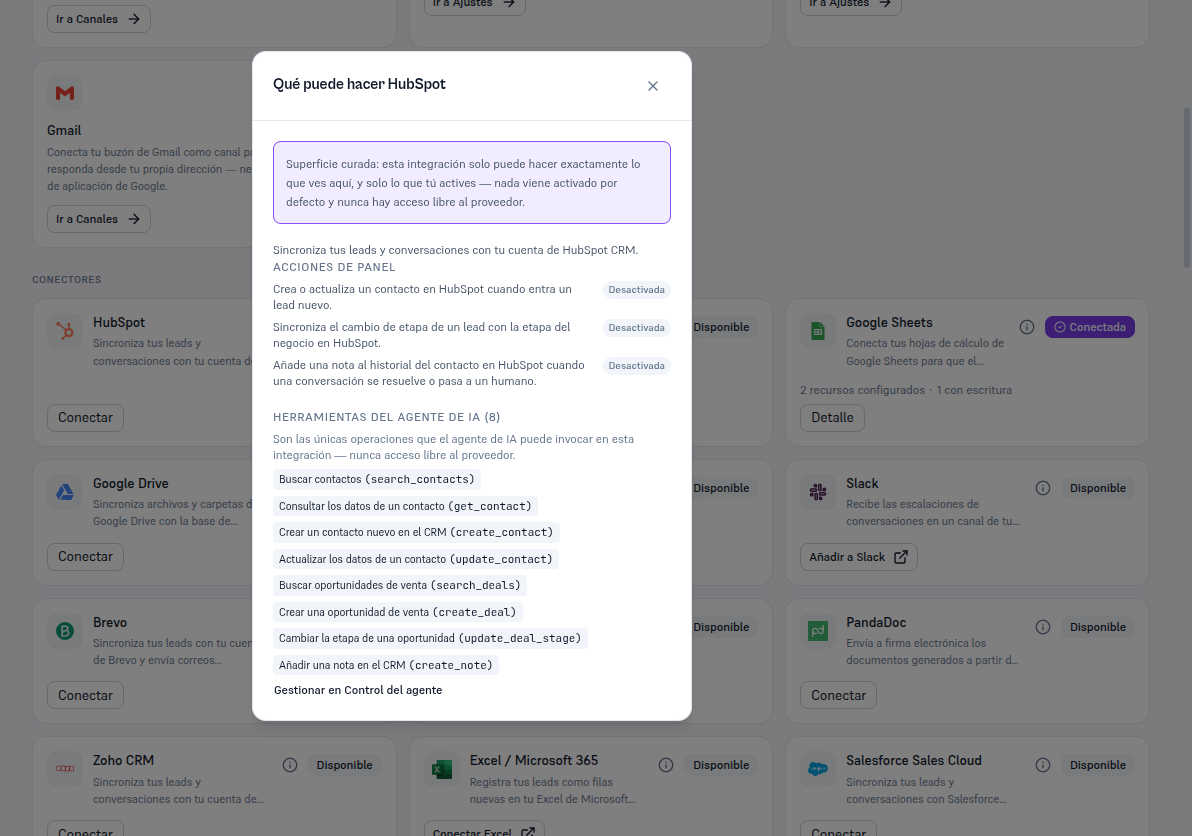
| Panel action | What it does |
|---|---|
| Lead → contact | Creates or updates a contact in HubSpot every time a new lead enters your Platform. |
| Stage → deal | Syncs a lead’s stage change with the corresponding deal’s stage in HubSpot. |
| Conversation note | Adds a note to the contact’s history in HubSpot when a conversation is resolved or handed to a human — with a bounded excerpt of the last messages, never the full conversation. |
And the list of AI agent tools, with the eight operations the agent can invoke (section 7) — each with a button to uncheck it if you don’t want the agent to use it, and a “Manage in Agent control” link that takes you to the screen where you decide, per tool, whether it’s Internal (only your team uses it from chat) or Both (your end customers use it too) — Manual 52 · Agent control and permissions covers that screen in detail. By default, “Create a new contact” and “Add a note in the CRM” are Both; the other six (searches, updating a contact, everything about deals) are Internal — the agent uses them, but it isn’t disclosed to the customer nor does it depend on their confirmation.
The “What can HubSpot do” button (the i icon) on the card itself shows this same summary — panel actions and agent tools, with their enabled/disabled state — without needing to connect yet: it’s the way to see in advance, before pasting any token, exactly what this integration would do.
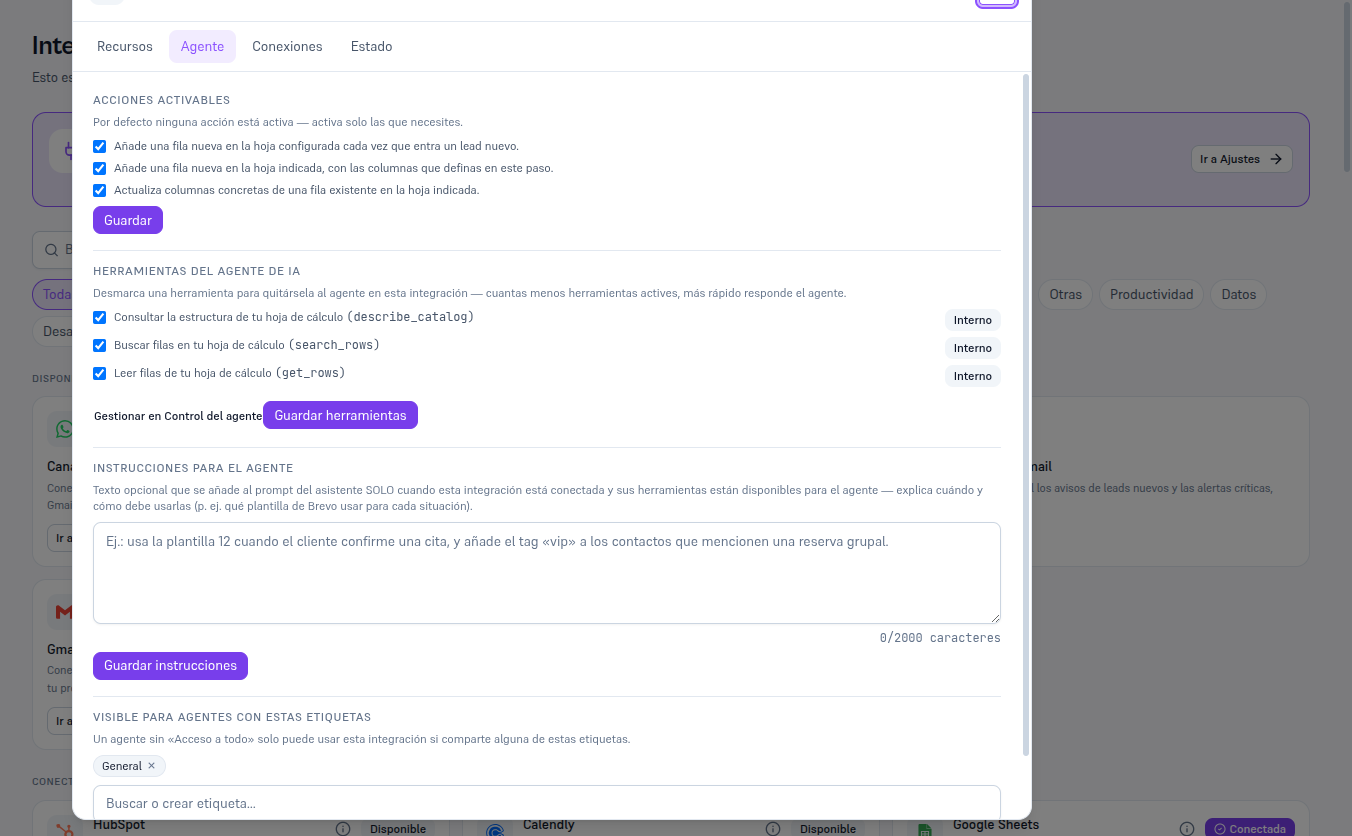
Once connected, the detail’s Agent tab shows the same lists, now with checkboxes to activate/deactivate and a Save button for each. The following example uses Google Sheets (already connected on this test tenant) to show what that tab really looks like once there’s a connection — with HubSpot connected you’ll see the same layout, with HubSpot’s own actions and tools described above.