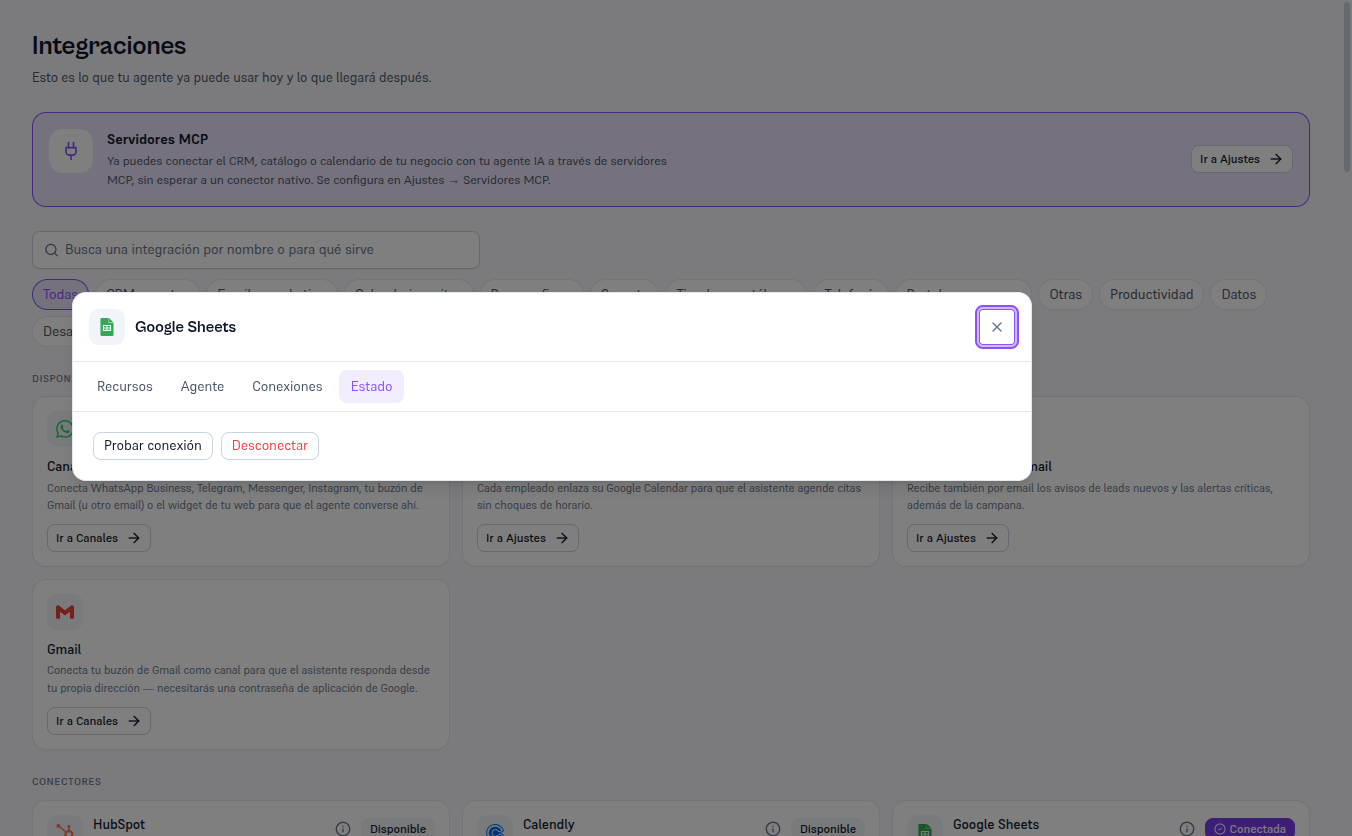
The detail’s Status tab includes a Test connection button that checks, on the spot, that the Platform’s service account still has access to what you shared.
Requirements: Admin role.
- Open Google Drive’s Details and go to the Status tab.
- Click Test connection.
Result: “Connection successful” if access is still valid, or “Couldn’t connect: [reason]” if you stopped sharing the file/folder or revoked access (section 8).
The example below again uses Google Sheets — with Drive connected, the same “Status” tab shows the “Test connection” and “Disconnect” buttons.