
Skip to content

By integration

In Platform: connecting and registering the sheet

Requirements: Admin role; having shared the sheet from section 3 (or doing it right after connecting — the order doesn’t matter, as long as you share before trying to use the sheet).

  1. In Integrations, find the Google Sheets card and click Connect (if it isn’t already connected on your account).
  2. Step 1: share with this email — the modal shows your Platform’s service account email, with a button to copy it.
  3. Step 2: connect — click Connect. No password or key is needed: access is granted by the share from step 1.

Google Drive shares this exact same two-step mechanism (same service account) — the example below uses its connect modal, captured in this documentation’s test environment (which is why the service account email doesn’t appear: this particular environment doesn’t yet have it configured). In your own account you’ll see the same form, with the real email you need to share in step 1.

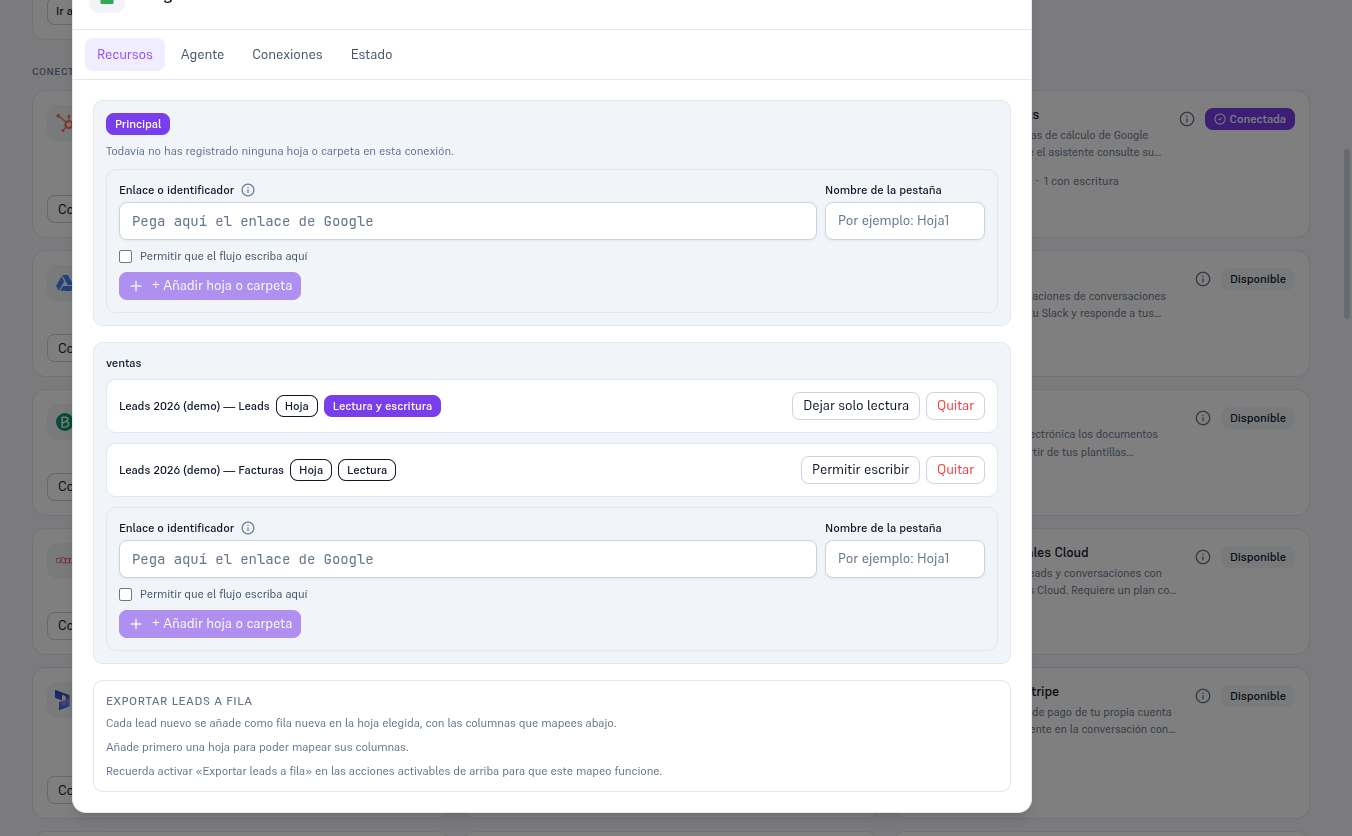
Once connected, open Details → Resources to register the specific sheet: paste the Google sheet’s link or identifier, indicate the tab name (e.g. “Sheet1”), and check “Allow the flow to write here” if you shared with Editor permission and want to use “Append row”/“Update row”. You can register several sheets or tabs on the same connection.
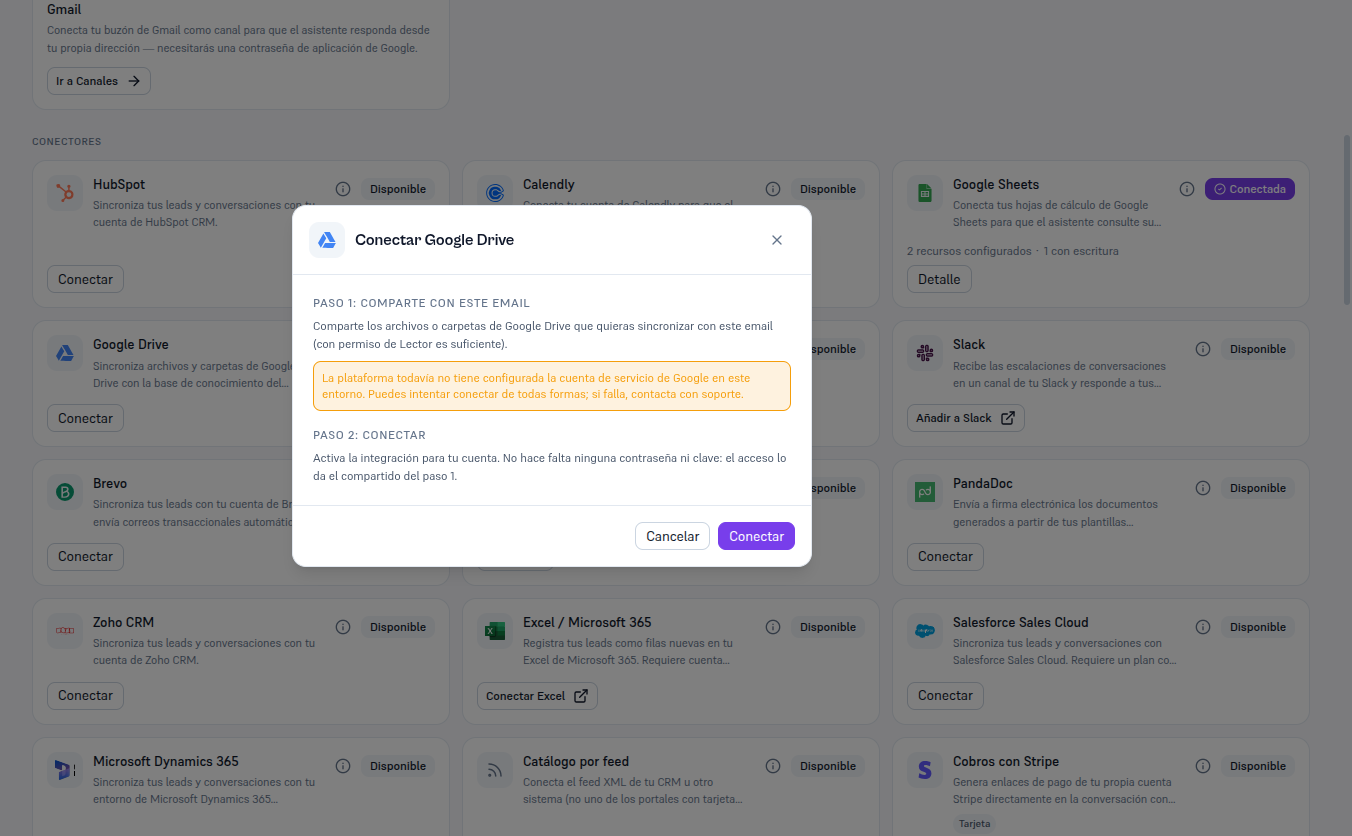
“Connect Google Drive” modal (same mechanism as Google Sheets) with Step 1 "share with this email" and Step 2 "connect", the notice that the platform does not yet have the service account configured in this test environment, and the Cancel and Connect buttons

Resources tab of the Google Sheets detail with the Principal connection with no sheets registered and the Link or identifier + Tab name form, and the named connection "ventas" with two registered sheets: Leads 2026 (demo) — Leads with Read and write, and Leads 2026 (demo) — Invoices with Read, plus the column-mapping notice for the Export leads to row action