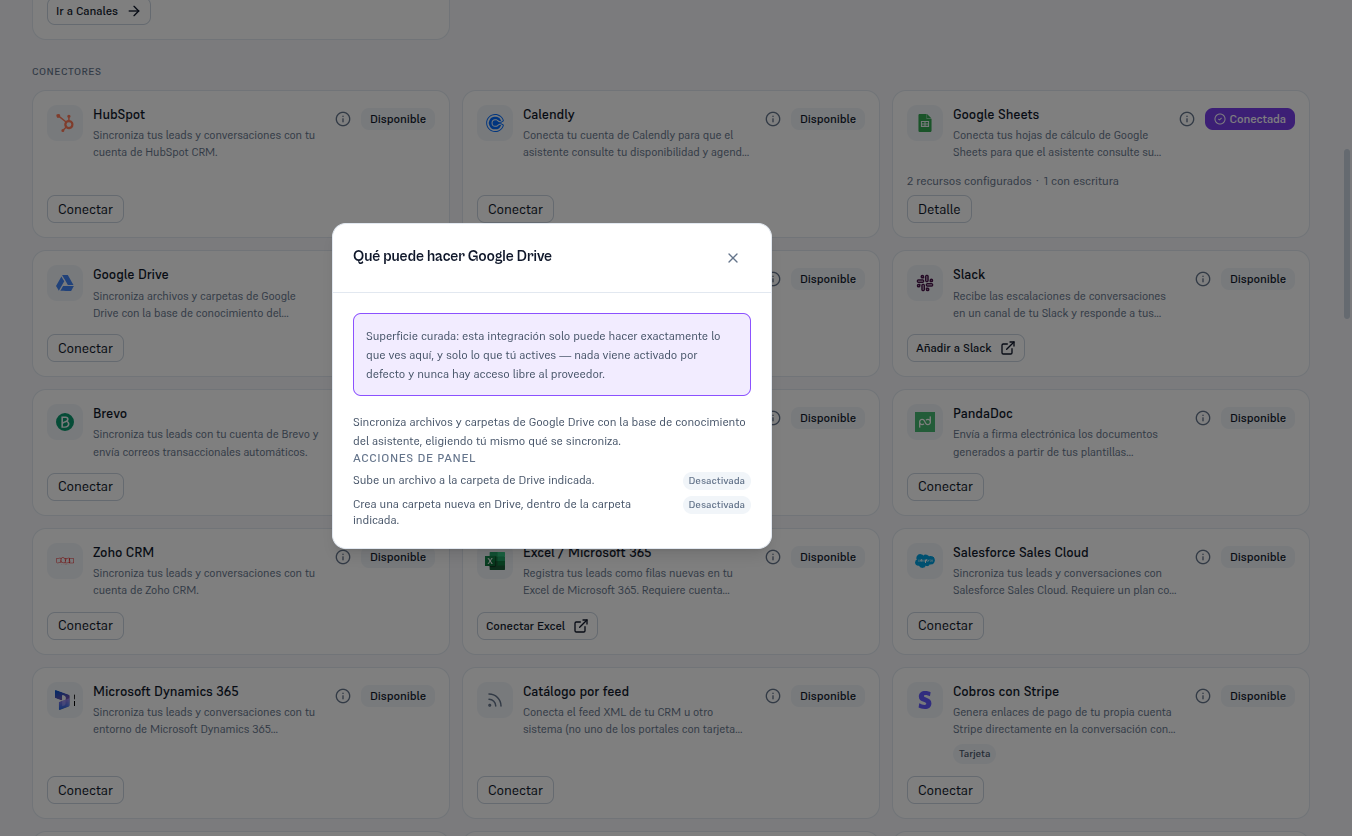
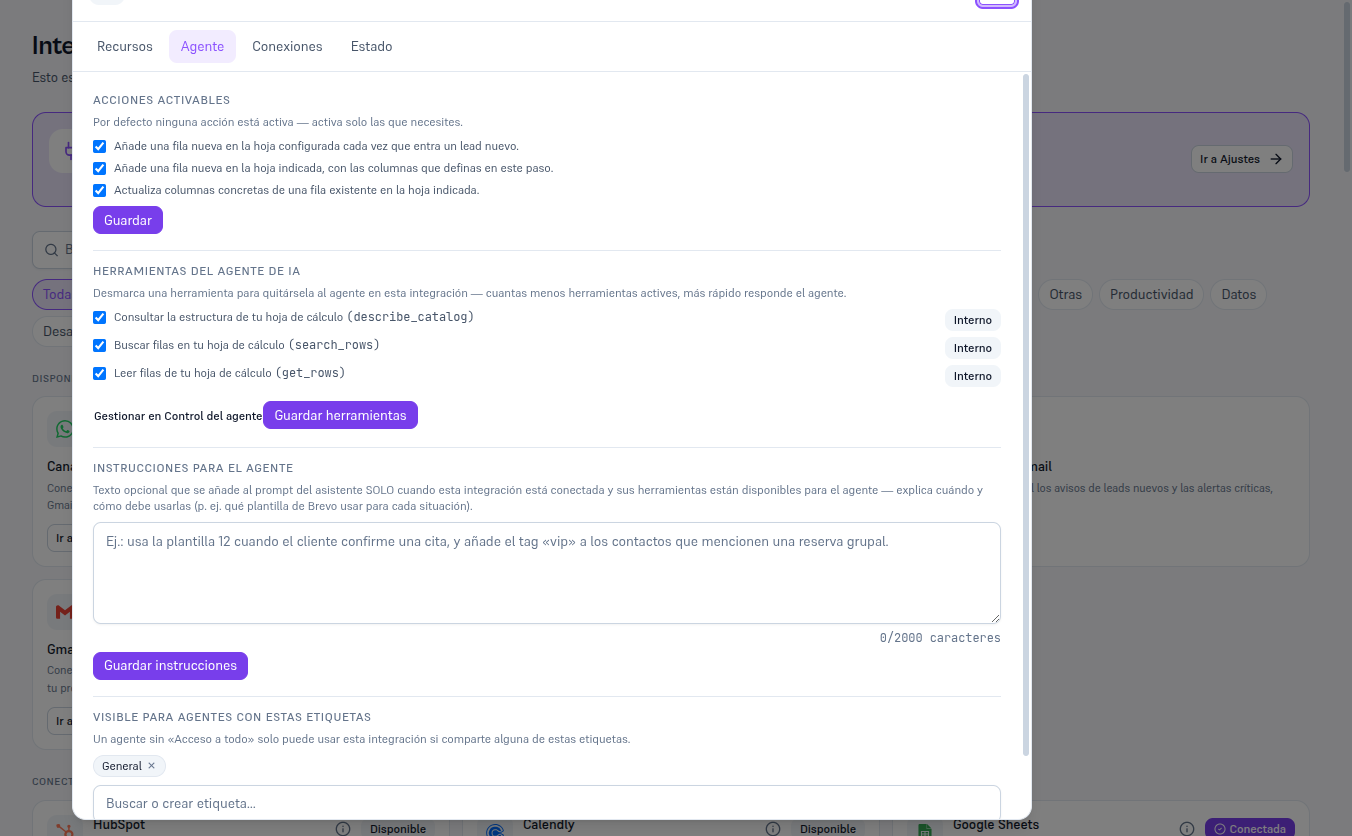
From the Google Drive card, already Connected, click Details to open its record with the usual four tabs (Resources/Agent/Connections/Status).
In the Agent tab you’ll see two panel actions:
| Panel action | What it does | Available today |
|---|---|---|
| Upload file | Uploads a file to the indicated Drive folder, from a flow step. | No — see warning below. |
| Create folder | Creates a new folder in Drive, inside the indicated folder, from a flow step. | No — see warning below. |
Warning — These two actions exist in the catalog but don’t run yet
Writing to Drive (uploading a file or creating a folder) needs a broader Google permission than the one read-only sync uses today — a permission your provider hasn’t activated at the platform level yet. You’ll see these two actions in the checklist like any other, and if you add them as a piece in a flow (Manual 55), the editor itself warns you: “This piece needs an additional platform permission with Google that isn’t active yet: you’ll be able to save it, but it won’t run until then”. It’s not a mistake on your part — it’s a real limitation this guide prefers to explain rather than hide.
The “What can Google Drive do” button (the i icon) on the card itself shows this same summary — the two actions with their status — without needing to connect yet.
Notice that the popover shows no AI agent tool — unlike HubSpot or Google Sheets, Drive doesn’t give the LLM any new tools: the agent keeps using “Search documents” as always. The example below uses Google Sheets (already connected in this test tenant) to show what the Agent tab looks like once there’s a connection — with Drive connected you’ll see only the checklist of the two panel actions above, with no tool list.