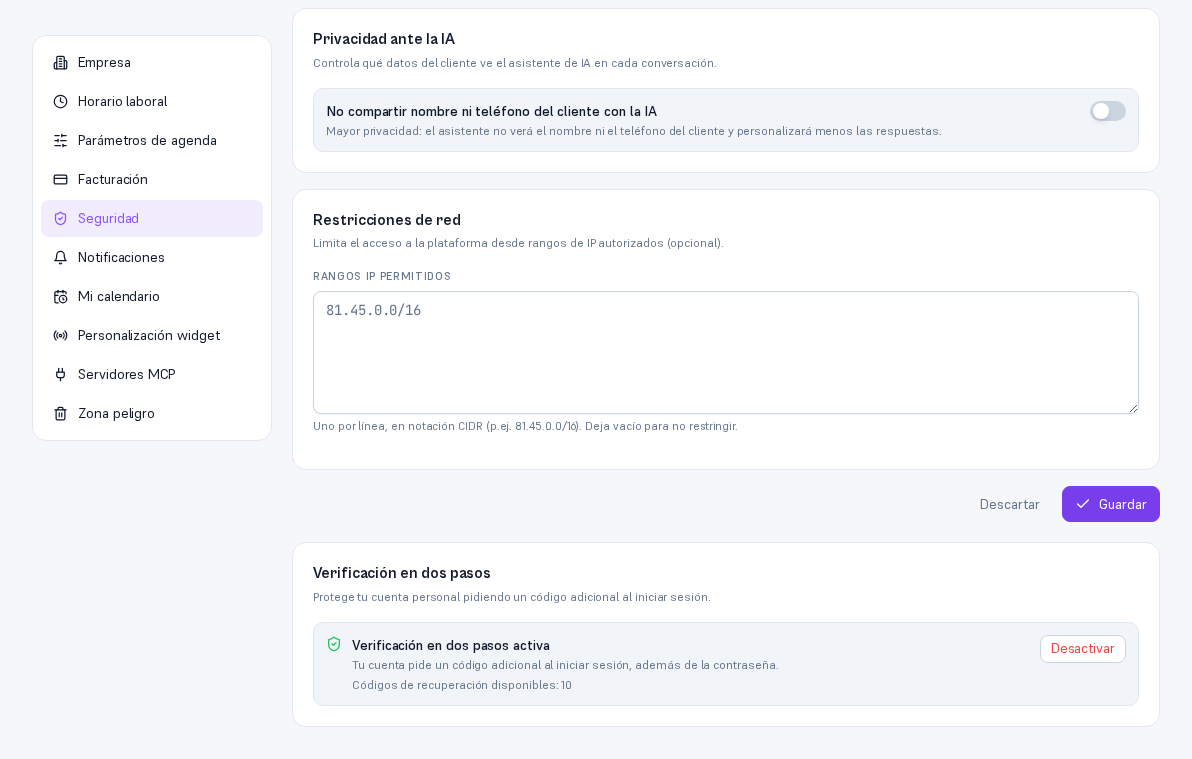
Adjust the Platform’s access conditions for your whole team.
Requirements: Admin role.
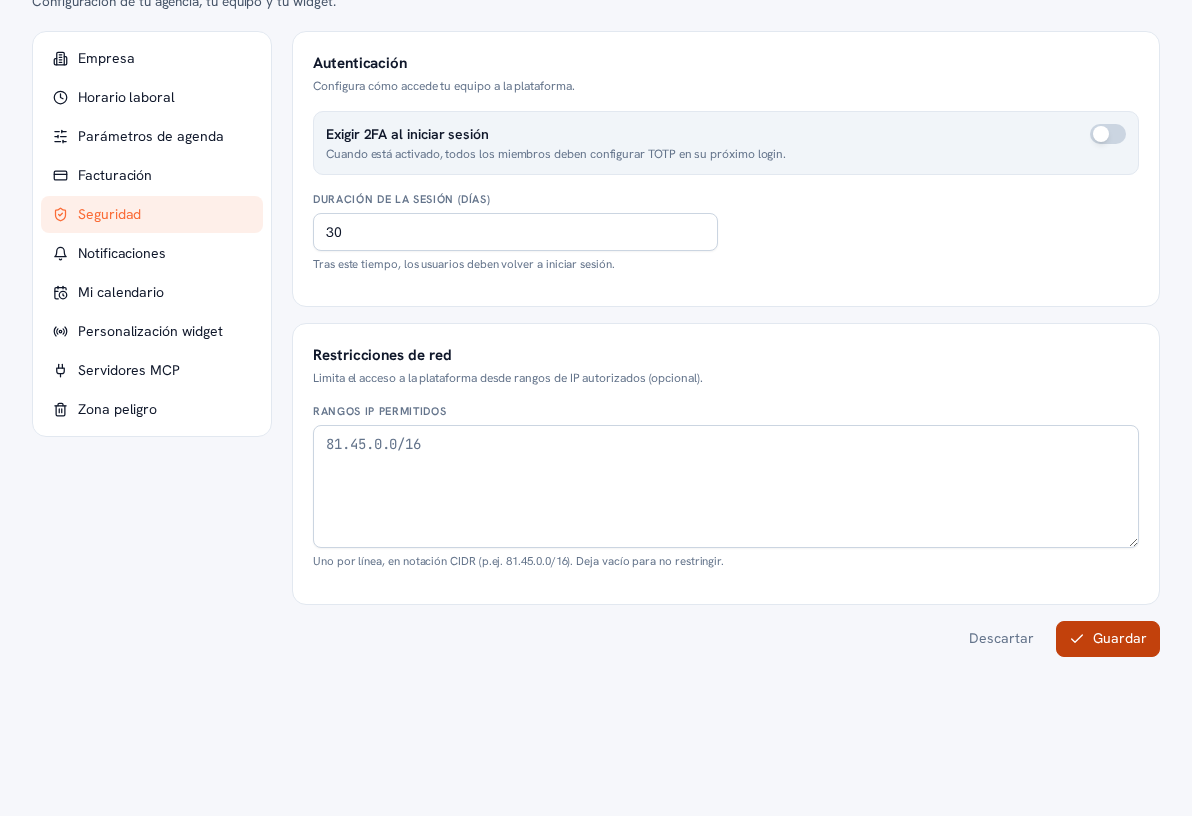
- Go into Settings → Security.
- Turn on “Require 2FA at login” if you want the whole team to set up two-factor verification on their next access.
- Adjust the session duration (days): once that time passes, they have to log in again.
- If you need to restrict access to specific addresses, add your allowed IP ranges (optional).
- Tap Save.
Result: the new access requirements apply to the team from that moment on; anyone who already has a session open keeps it until it expires or they log out.
Two-factor verification for your own account
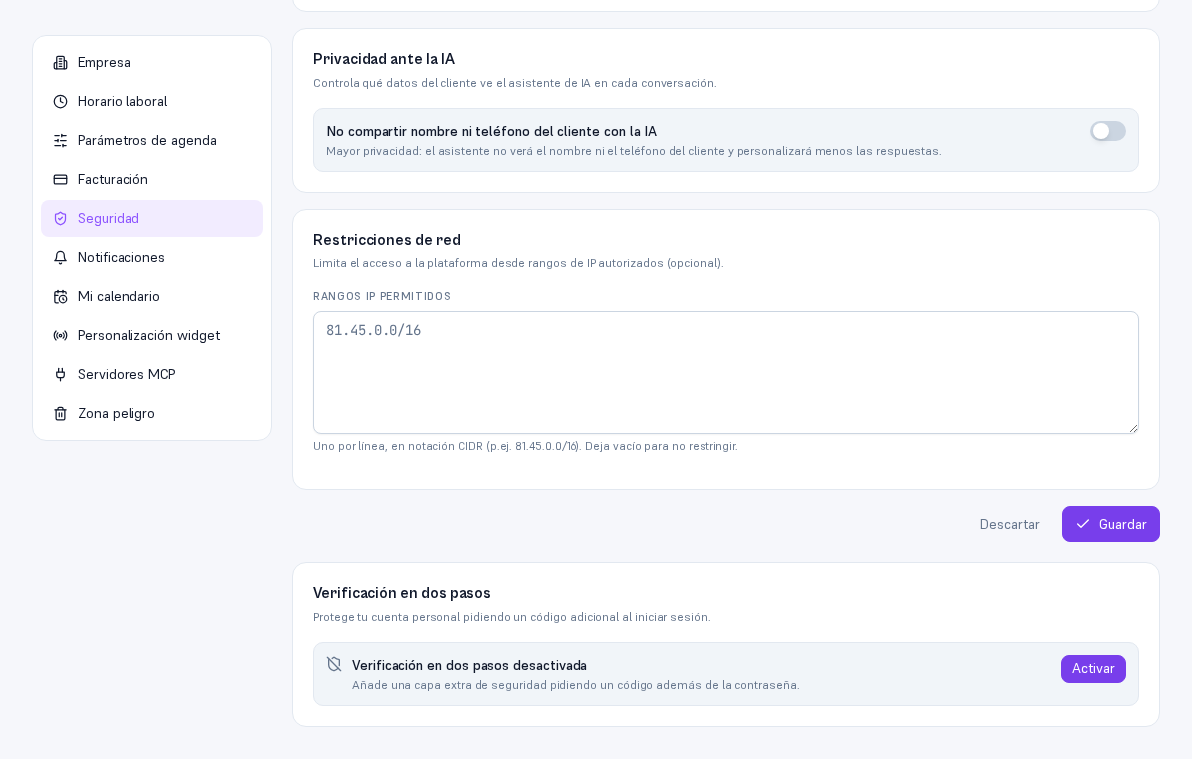
Section titled “Two-factor verification for your own account”At the bottom of Settings → Security, below the sections above, there’s a second card “Two-factor verification” that has nothing to do with the “Require 2FA at login” toggle: that was a policy an administrator imposes on the whole team; this is the actual enrollment of your own account, and any role sees and manages it — admin, editor or viewer —, not only whoever administers the agency.
Requirements: none in particular; an authenticator app (Google Authenticator, Authy…) installed on your phone.
Procedure: turn on two-factor verification
Section titled “Procedure: turn on two-factor verification”- Tap Activate.
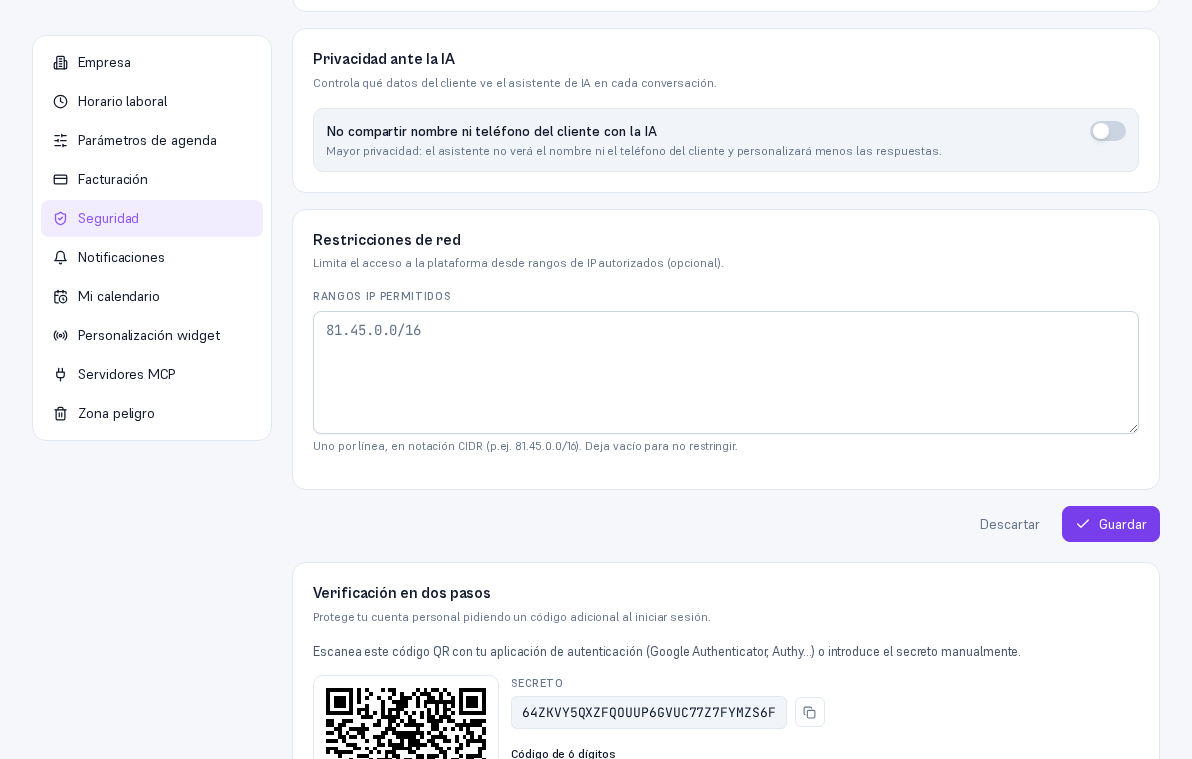
- Scan the QR code with your authenticator app or enter the secret manually.
- Type the 6-digit code your app generates and tap Confirm and activate.
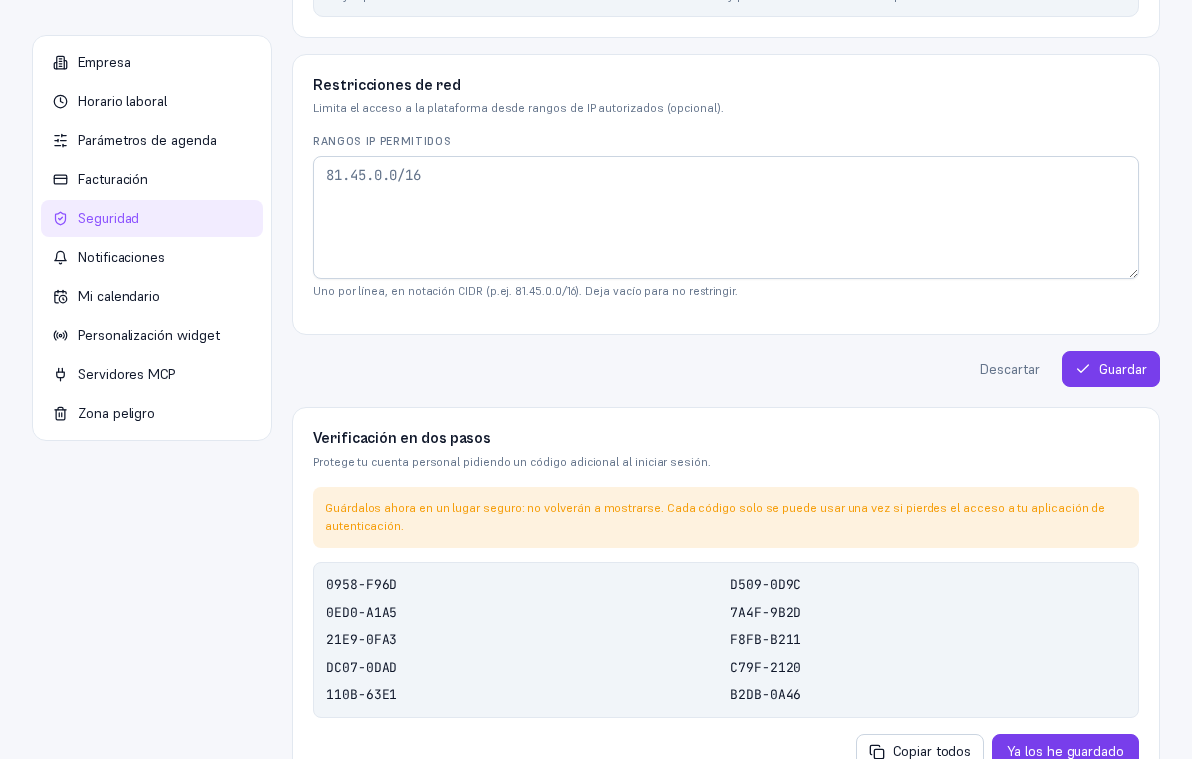
Result: the platform shows you 10 recovery codes, each single-use in case you lose access to your authenticator app. Tap Copy all to save them and confirm with “I’ve saved them” — they’re never shown again.
Important — Save them right away
The recovery codes aren’t shown again after this screen. If you lose them and also lose access to your authenticator app, contact your provider (Manual 28 · Support).
Logging in with two-factor verification on
Section titled “Logging in with two-factor verification on”With verification turned on, after typing your email and password on the login screen (Manual 15 · Getting started) a second step shows up: “Enter your authenticator app’s code to continue”. Type the 6-digit code and tap Verify — or use “Use a recovery code” if you don’t have your app handy.
Procedure: turn off two-factor verification
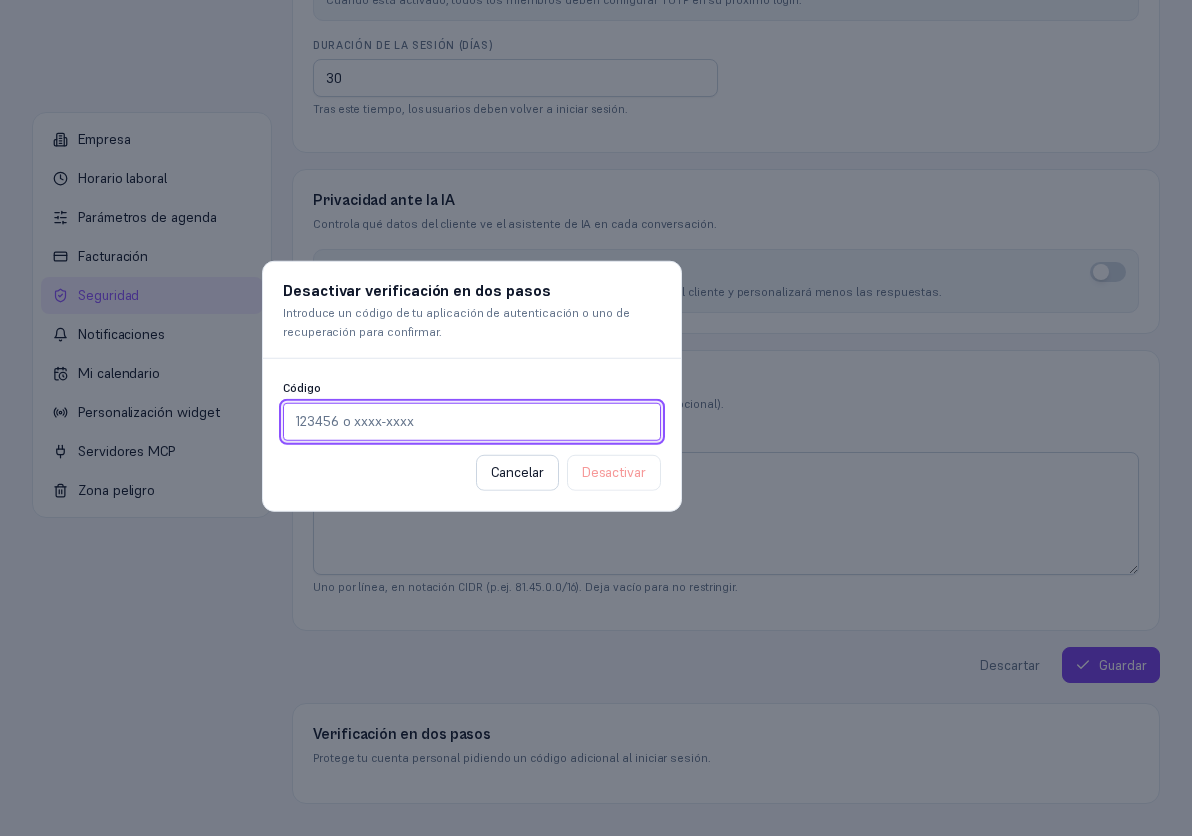
Section titled “Procedure: turn off two-factor verification”- On the “Two-factor verification” card, with verification on, tap Deactivate.
- Enter a code from your authenticator app (or a recovery one) to confirm.
- Tap Deactivate.
Result: the account goes back to asking for just a password at login.