Requirements: Admin role; the Production API key from section 3.
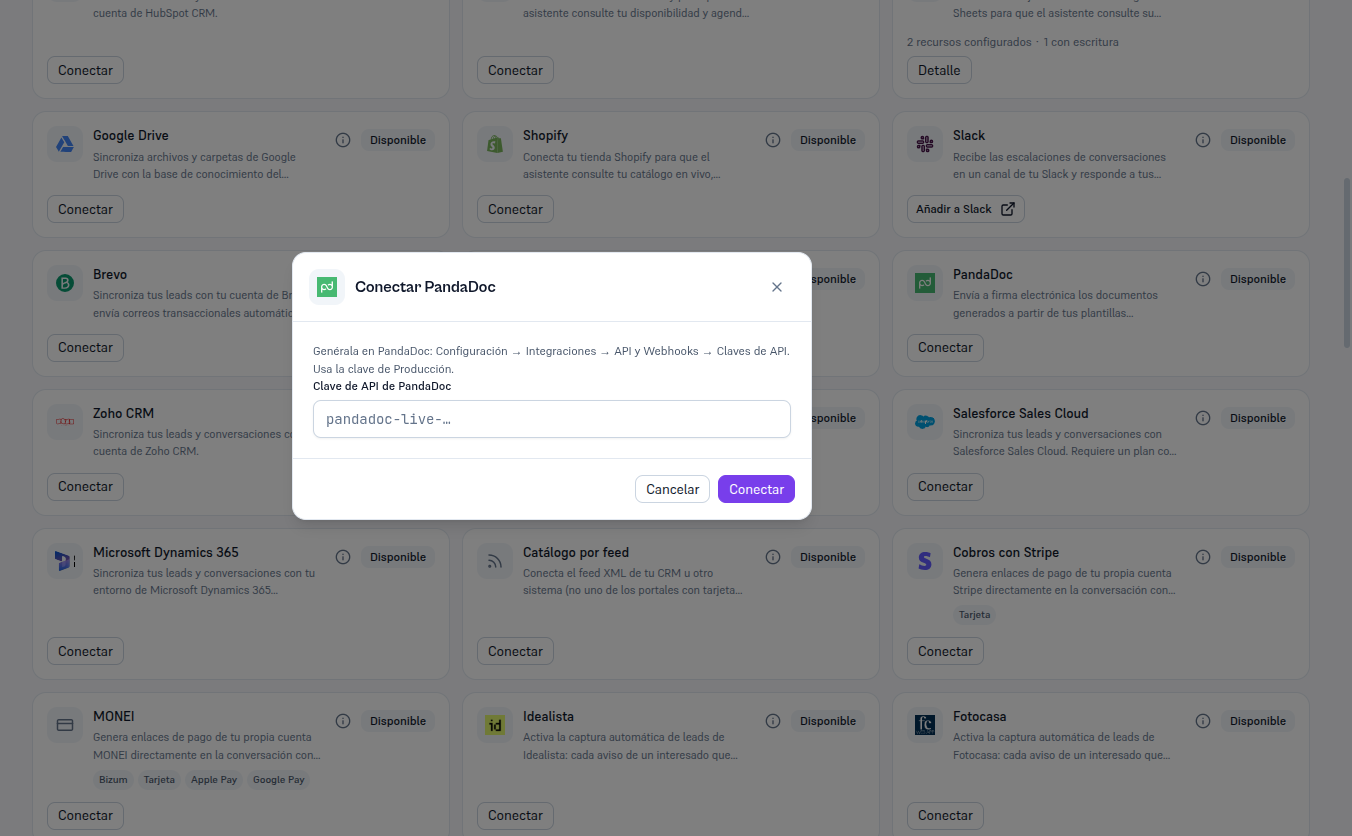
- In Integrations, find the PandaDoc card (in “Available” status) and click Connect.
- The “Connect PandaDoc” modal repeats section 3’s help, so you have it at hand without going back to PandaDoc.
- Paste the PandaDoc API key into the field.
- Click Connect.
Result: the Platform verifies the key against PandaDoc for real before saving anything — it doesn’t accept a validly-formatted key at face value. If verification fails, you’re told the specific error (section 8) and no credential is saved. If it succeeds, the card switches to Connected and the Platform automatically registers the status notice (webhook) it needs to find out when a document gets signed.