Requirements: Admin role; the Marketing API key from section 3 (and, if you want transactional emails, the Mandrill key).
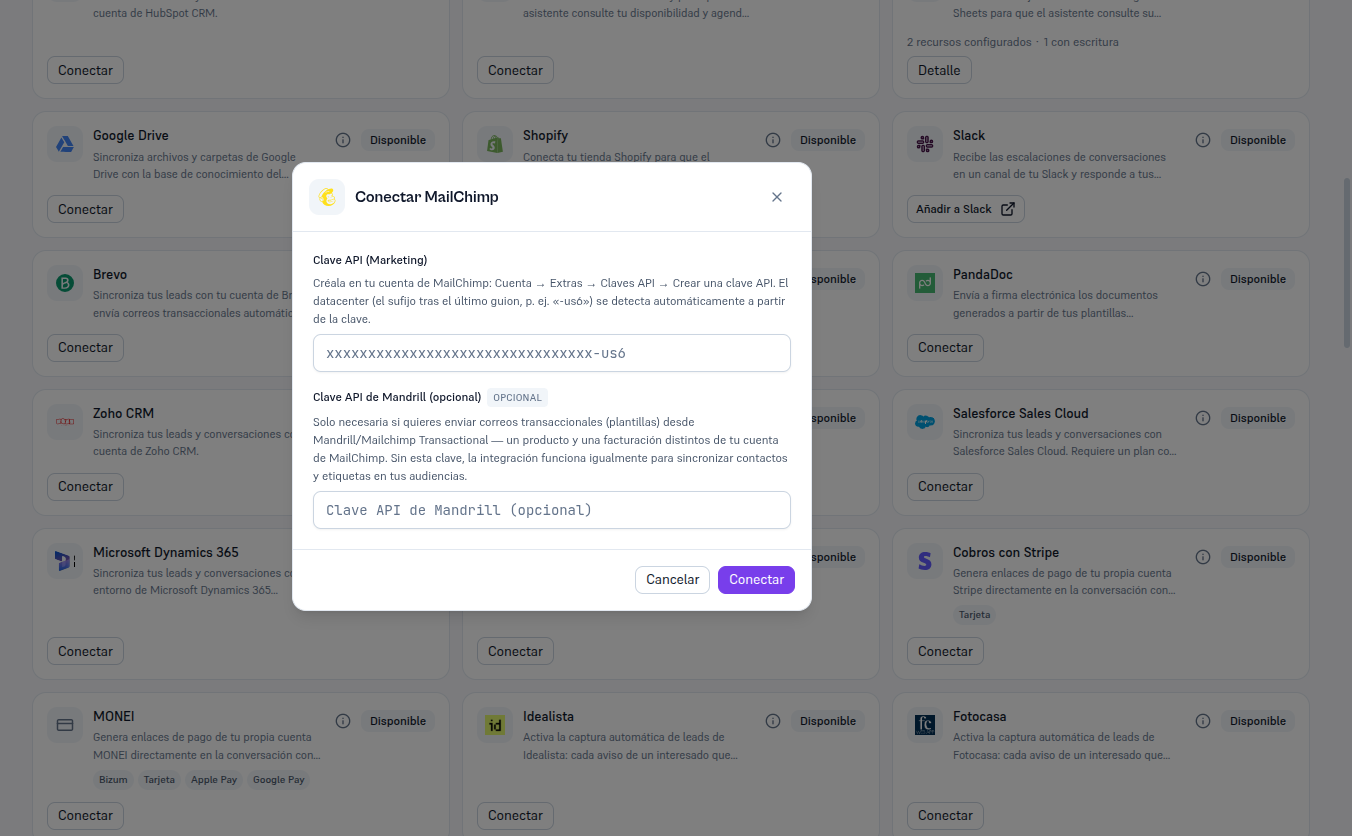
- In Integrations, find the MailChimp card (in “Available” status) and click Connect.
- The “Connect MailChimp” modal repeats section 3’s help, so you have it at hand without going back to MailChimp.
- Paste the API Key (Marketing) into the first field.
- If you have a Mandrill key, paste it into the optional Mandrill API Key (optional) field — if not, leave it empty and carry on the same.
- Click Connect.
Result: the Platform verifies the key against MailChimp for real before saving anything — it doesn’t accept a validly-formatted key at face value. If verification fails, you’re told the specific error (section 8) and no credential is saved. If it succeeds, the card switches to Connected.