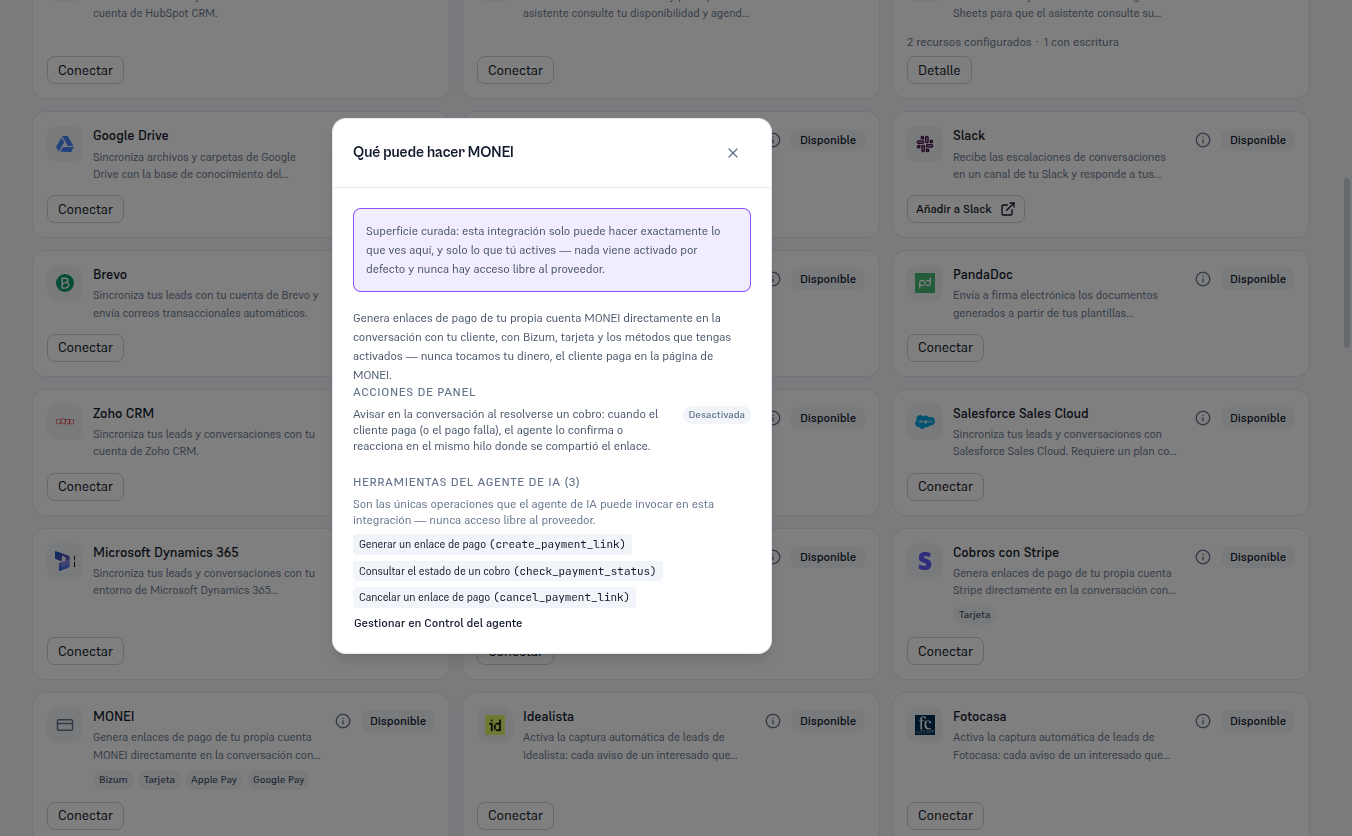
Connecting MONEI doesn’t activate the panel action on its own — it’s born off, the same “nothing on by default” principle that governs the rest of your agents’ resources. Of the four payment methods MONEI supports today (Bizum, Card, Apple Pay, Google Pay), only Bizum stays checked from the start — the one you explicitly asked for when connecting; the rest remain available for you to activate if you need them.
From the MONEI card, already Connected, click Detail to open its record. You’ll see four tabs:
| Tab | What it contains |
|---|---|
| Resources | The “Payment methods this connection serves” checklist — Bizum, Card, Apple Pay and Google Pay, with Bizum checked by default; you can check or uncheck each one depending on what you want the agent to offer through this specific connection. |
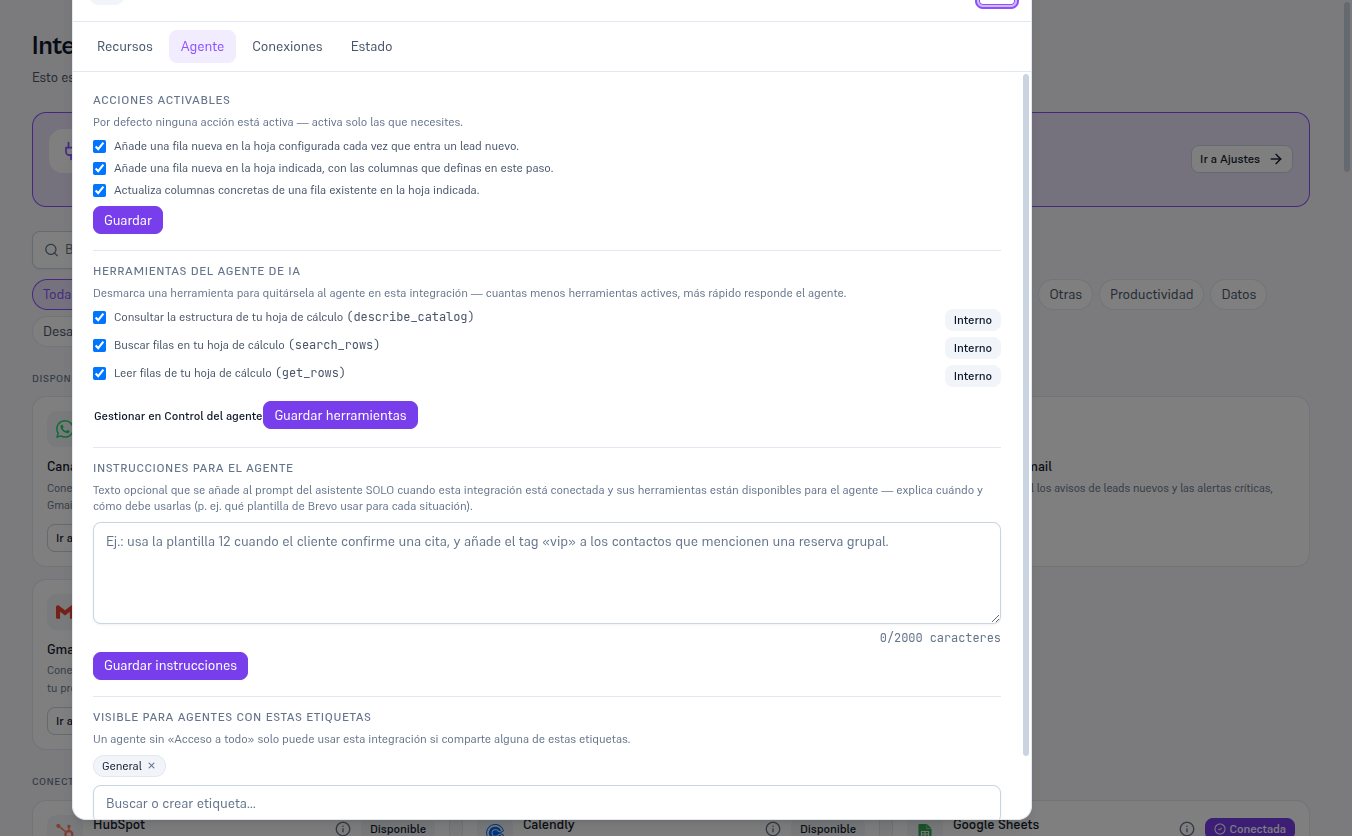
| Agent | The checklist for the “Notify in the conversation when a payment resolves” panel action and the list of the three agent tools, each with its own Save button. |
| Connections | The principal connection — the only one for this integration. |
| Status | The “Test connection” and “Disconnect” buttons. |
Notice — Figure pending a session with a real key
The payment methods checklist (Resources tab) can only be photographed with a genuinely active MONEI connection — since this guide doesn’t create accounts with external providers, that screenshot is pending the dedicated session with a real test key (see this task’s report). The exact same mechanism already documented by the Payments with Stripe Manual §5: checkboxes + a “Save methods” button, with Bizum already checked instead of Stripe’s single method.
The “Manage in Agent control” link on the Agent tab leads to the screen where it’s decided whether “Notify in the conversation when a payment resolves” and each tool are Internal (only your team) or Both (your customers too) — Manual 52 · Agent control and permissions covers that screen in detail.
The “What can MONEI do” button (the i icon) on the card itself shows this same summary without needing to connect yet.
The example below uses Google Sheets (already connected in this test tenant) to show what the Agent tab really looks like once there’s a connection — with MONEI connected you’ll see a single panel action (instead of three) and the three payment tools described above, instead of Sheets’s own.