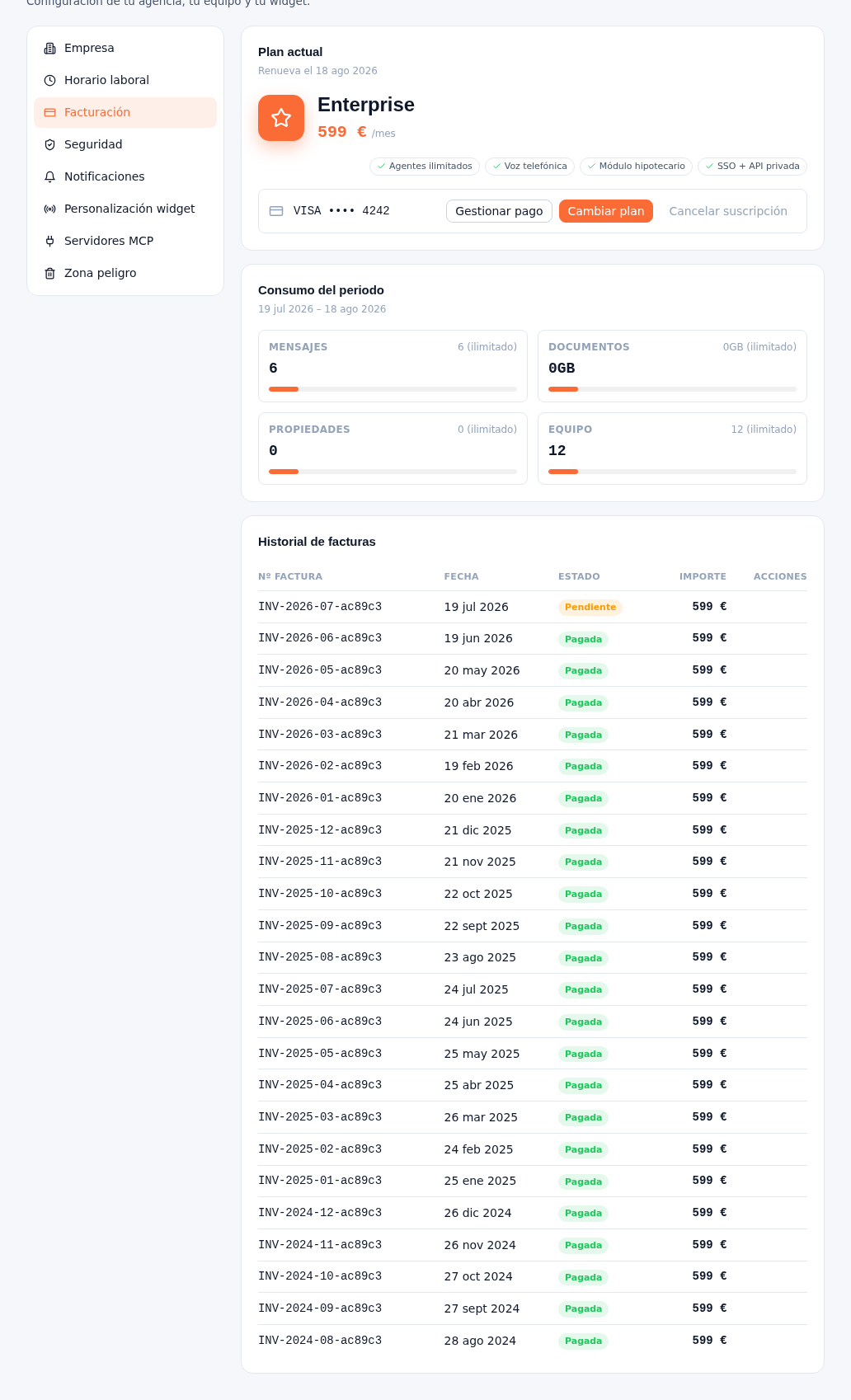
The platform never sees or stores your saved card: it lives entirely in Stripe.
Requirements: Administrator role.
- Go into Settings → Billing.
- Tap Manage payment: it takes you to Stripe’s Customer Portal, outside the Platform, on a Stripe domain. There you can change your saved card and check your charge history directly with Stripe.
Result: your payment method is updated in Stripe and reflected on the plan card (for example, “VISA •••• 4242”) the next time you load the screen.
Canceling your subscription
Section titled “Canceling your subscription”- Tap Cancel subscription, on the same plan card.
- A short survey opens (main reason + optional comment) — it helps us improve the product.
- Confirm.
Result: your subscription is marked to cancel at the end of the current period (never immediately) — you keep having service until that date, which you’ll see below the plan card.
Note — The real status change arrives via Stripe, not when you tap the button
Tapping “Cancel subscription” marks the intent in Stripe; your subscription actually moves to
cancelledwhen the period ends and Stripe confirms it via webhook — never from your browser’s response. If you don’t have any active subscription to cancel, you’ll see the notice “There’s no active subscription to cancel”.