
Skip to content

Account and team

Procedure: invite a new member

Requirements: administrator role — only administrators can invite members.

  1. On the Members tab, tap ”+ Invite member”.
  2. Type the person’s email.
  3. Choose their role, among three selectable cards:
  • Admin — “Everything: billing, team, agents”.
  • Editor — “Day-to-day operations, no billing” (checked by default).
  • Read-only — “Read-only”.
  1. Turn on “Will also be an operator” if they’re going to receive inbox conversations — the toggle is on by default. With it on, you can type a department (for example “sales” or “rentals”) in the field below and tap ”+ Add”; repeat for every department you want to associate with them. The department field is marked optional.
  2. Tap “Send invitation”.

Result: the invited person receives an email to join. While they haven’t accepted, their invitation stays listed on the Invitations tab.
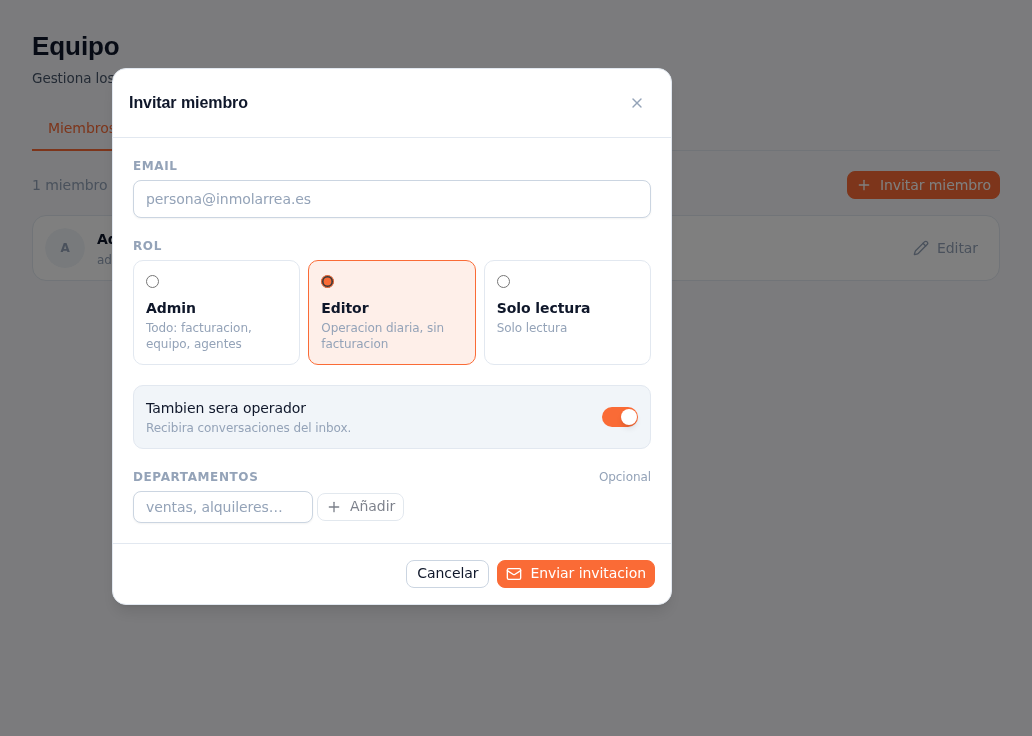
The Invite member window over the Team screen: the EMAIL field with the person@inmolarrea.es placeholder, three ROLE cards (Admin: Everything, billing, team, agents; Editor: Daily operation, no billing, selected with an orange border; Read-only: Read-only), the Will also be an operator toggle on with the text "Will receive inbox conversations", the optional DEPARTMENTS field with the sales, rentals placeholder and the + Add button, and the Cancel and Send invitation buttons